Your store,
from setup to daily operations.
A practical guide to installing Aruvelis and managing its products, editorial storefront, stock, customers and orders.
Start here
Aruvelis is a single-store physical-product commerce application. Its public storefront presents an editorial fashion catalog, while the existing Nexus Blade/Bootstrap administration shell manages the catalog, typed homepage sections and store operations. It is not a multi-vendor marketplace or a subscription SaaS platform.
For installers: follow Server requirements through First administrator. For store managers: start at Products, Inventory and Orders. For developers: use Files & folders, Updates and the architecture documents supplied in docs/aruvelis-dynamic/.
Real screenshots: captures in this guide come from the Aruvelis demonstration site on 19 October 2026. They show the actual storefront and Nexus admin, not design mockups. The order examples use a seeded demo order. Sensitive populated inputs are masked where present. A temporary guest bag was used to photograph checkout; no orders, inventory adjustments or settings changes were submitted.
Images open at full size. All manual assets are local, so copy the entire documentation folder to read it offline. External demo, support and credit links require internet access.
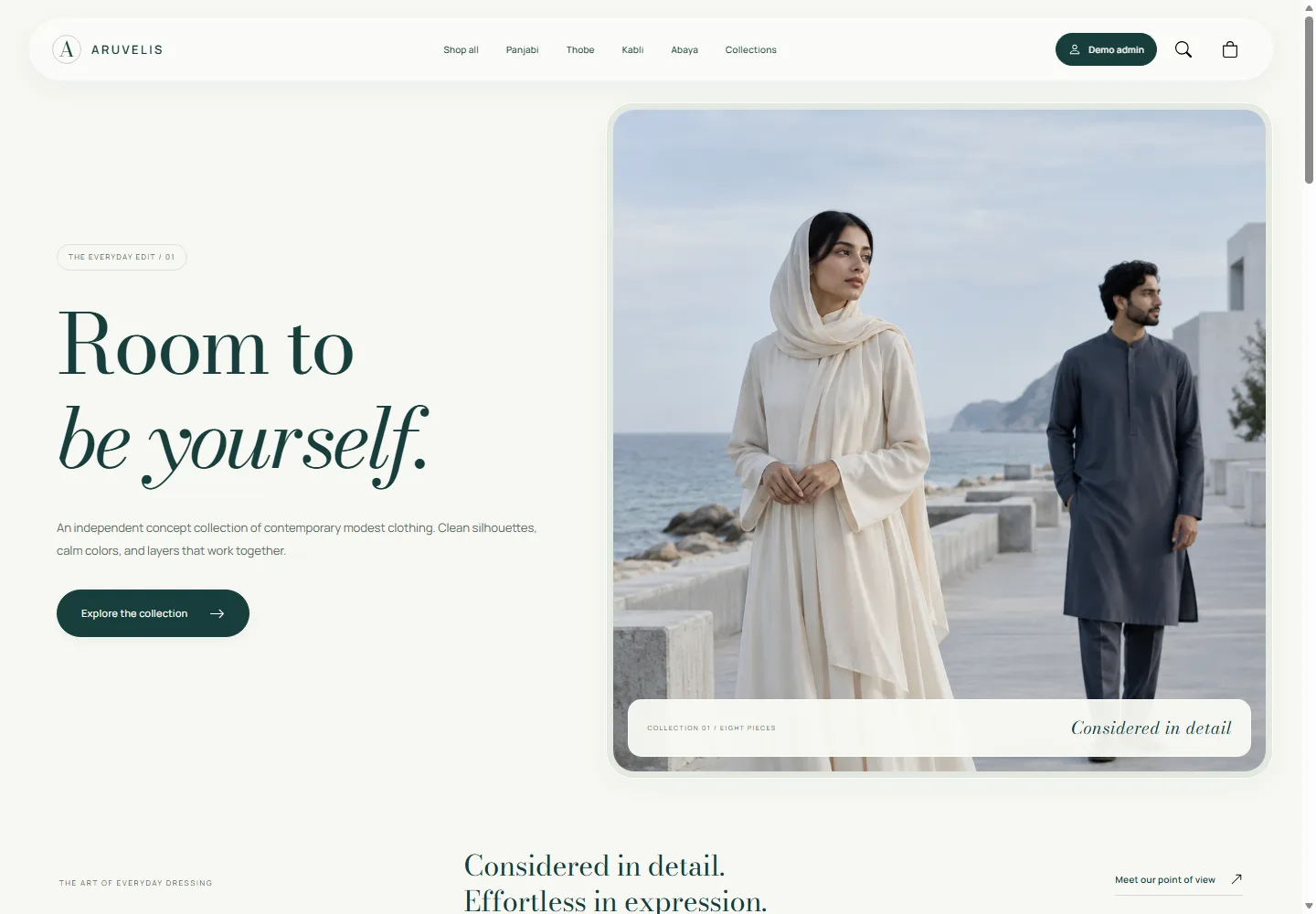
Features & boundaries
| Area | Included workflow | Important boundary |
|---|---|---|
| Catalog | Products, size variants, galleries, categories, collections, search and market-aware prices. | Physical products; no digital file delivery, vendor commissions or marketplace payouts. |
| Storefront content | Typed homepage sections, selected products/categories, brand storytelling, FAQs, policy pages and menu links. | Structured section editing, not a drag-and-drop arbitrary-page builder. |
| Sales | Session-backed bag, shipping choices, coupons, tax totals, order confirmation and printable receipt. | COD and Stripe are the registered checkout methods. Stripe uses Stripe.js and PaymentIntents once enabled with valid keys. Cards only; no 3-D Secure/SCA challenge, wallets, webhook processing or automatic Stripe refunds. |
| Stock & orders | Variant balances, reservations, adjustment history, fulfillment, cancellation, refund records and guarded step-by-step reversals. | Single-store stock handling; no supplier procurement, multi-warehouse routing or real carrier booking claim. |
| Customer area | Registration/login, order history, eligible cancellations, reorder and address book. | Reorder uses current availability and prices, not a promise of the original price. |
| Nexus administration | Commerce dashboard, role permissions, media, branding, translations, appearance, backups and activity records. | Permissions depend on the assigned role. Admin theme settings do not redesign the public storefront. |
| Markets | Currencies, markets, country mapping and per-market catalog availability. | Adding a currency is not automatic FX conversion, tax compliance or worldwide shipping coverage. |
Unused starter CMS routes may remain in the underlying starter even when omitted from the commerce sidebar. They are not an advertised public Aruvelis blog. Review the actual buyer release before listing additional features.
Server requirements
| Component | Requirement |
|---|---|
| PHP | 8.4+ within the committed dependency constraints. The application currently uses Laravel 13. Keep CLI and web PHP versions aligned. |
| PHP extensions | PDO with pdo_mysql, OpenSSL, mbstring, tokenizer, ctype, fileinfo, XML/DOM, GD, intl and zip. Composer's platform check is authoritative for the installed lockfile. SQLite-based development tests also need pdo_sqlite. |
| Database | MySQL 8 is the documented production baseline. Create a dedicated UTF-8 database and a restricted application account. Do not assume every Laravel database driver has been release-tested. |
| Build tools | Composer 2; Node.js 22.12+ compatible with locked Vite 8; npm. Node is a build-time dependency, not the public web server. |
| Hosting | Nginx/PHP-FPM or Apache with URL rewriting; HTTPS; ability to select the public/ document root; cron and a managed queue worker for asynchronous jobs. |
| Storage & mail | Writable storage/ and bootstrap/cache/, storage symlink support, adequate space for images/backups, and a real mail service for delivered email. |
php -v
composer --version
node --version
npm --version
composer check-platform-reqs --no-dev
The final command runs after installing dependencies. Match the documented toolchain instead of using --ignore-platform-reqs to bypass incompatibilities.
Files & folders
| Path | Purpose |
|---|---|
app/Commerce/ | Catalog, market context, cart, checkout, inventory, orders and storefront services. |
app/Http/Controllers/Storefront/ | Public catalog, cart and checkout endpoints. |
app/Http/Controllers/Admin/Commerce/ | Commerce administration controllers. |
resources/views/storefront/ | Customer-facing Blade views. |
resources/views/admin/ | Nexus layouts, components and administration screens. |
resources/css/storefront/ and resources/js/storefront/ | Editable storefront styles and interaction source. |
config/admin-navigation.php, config/ajax-search.php | Permission-aware sidebar and existing reusable searchable selects. |
routes/storefront.php, routes/web.php, routes/console.php | Storefront routes, admin/customer routes and scheduled jobs. |
database/ | Migrations, factories and initial/demo seeders. |
Aruvelis/ | Original visual-reference template and seed image sources. This is not the dynamic application's web root. |
public/build/ | Generated Vite assets. Build these before uploading to hosting without Node. |
public/documentation/ | This offline-capable customer guide, local screenshots and author checklist. |
docs/aruvelis-dynamic/ | PRD, architecture, data model, decisions, template mapping and release notes. |
Do not serve the repository root or the original static Aruvelis/ template. The correct application entry point is public/index.php.
Secure web installation
Keep first-run setup behind temporary private access. Use a dedicated MySQL database. Reset mode permanently deletes the selected database's tables and views; never use it as an upgrade procedure.
- Extract the application outside the public web root. Serve
/var/www/aruvelis/publicover HTTPS, with PHP 8.4+ and the required extensions enabled. - Install locked dependencies, create
.envonly if absent and generate the application key once for a new installation. Preserve existing keys.
composer install --no-dev --prefer-dist --optimize-autoloader --no-interaction
cp -n .env.example .env
# Set APP_URL, APP_INSTALLED=false and APP_DEMO=false for a NEW installation.
php artisan key:generate
composer check-platform-reqs --no-dev
npm ci
npm run build- Give the web identity controlled write access to
.env, its parent directory,storage/andbootstrap/cache/. Allow creation ofpublic/storageif the link is missing. Never broadly grant 777 permissions. - Visit
/install, verify requirements/permissions and enter database host, port, name, username, password, site name and your own administrator credentials. - Choose Use a new / empty database normally. Existing tables/views are rejected without deletion. To deliberately reinstall, choose Reset selected database and reinstall, accept permanent deletion and type the exact database name.
- Submit once. The wizard runs migrations and
InstallerSeeder, creates the owner with administrator permissions, prepares the storage link and preservesAPP_KEY. It installs no demo accounts or transactions. Successful setup saves production settings,APP_DEMO=false,APP_DEBUG=false,APP_INSTALLED=yesand a private completion marker. - If the connection drops or a proxy returns 504, leave the page open: status polling checks completion and running state. Do not submit another reset. After completion with a lost session, sign in at
/admin/loginwith your supplied credentials.
The installer seeds currency/market foundations but no demo apparel, coupons, orders or shipping/tax examples. Configure products, collections, shipping, tax and COD/Stripe settings before selling. Stripe behavior and limitations remain documented in the payment chapter.
The completion marker (storage/app/private/installed.json) or installed flag locks every installer mutation, even if the database is offline. Concurrent installation is refused. Legacy onboarding URLs no longer reopen an installed application. Do not distribute live environment files, private storage or completion markers.
The installer does not install Composer/npm dependencies or configure cron, workers, mail and external providers. Do not run the full DatabaseSeeder for production setup; it can contain demo fixtures. For upgrades, back up and run only reviewed pending migrations instead of resetting.
Hosting & HTTPS
Nginx example
Adapt the domain, verified PHP-FPM socket, upload limits and TLS configuration to your server. The following is an application-routing example, not a complete TLS or server-hardening configuration.
server {
    listen 80;
    server_name store.example.com;
    root /var/www/aruvelis/public;
    index index.php index.html;

    location / { try_files $uri $uri/ /index.php?$query_string; }
    location = /index.php {
        include fastcgi_params;
        fastcgi_param SCRIPT_FILENAME $realpath_root$fastcgi_script_name;
        fastcgi_pass unix:/run/php/php8.4-fpm.sock;
    }
    location ~ \.php$ { return 404; }
    location ~ /\.(?!well-known).* { deny all; }
}
Install a valid certificate and redirect HTTP to HTTPS. Set APP_URL to the final HTTPS domain. Do not expose PHP source, environment files, backup directories or the Git directory.
Apache / cPanel
Set the domain's document root to the application public/ directory and retain the supplied public/.htaccess. Enable rewriting and the required PHP extensions. If hosting cannot change document roots, provision a proper subdomain/root mapping or choose suitable hosting; do not move private application files into a public directory.
If the host cannot run Node, build the exact release locally or in CI with the lockfile and upload public/build/, including its manifest. Hosting must still provide compatible PHP, database access, scheduled jobs and an appropriate worker mechanism.
Environment settings
Edit the deployment's private .env, never the public documentation or committed example, to hold real credentials.
APP_NAME=Aruvelis
APP_ENV=production
APP_DEBUG=false
APP_URL=https://store.example.com
APP_DEMO=false
APP_INSTALLED=false

DB_CONNECTION=mysql
DB_HOST=127.0.0.1
DB_PORT=3306
DB_DATABASE=aruvelis_store
DB_USERNAME=aruvelis_app
# Set DB_PASSWORD privately on your server.

SESSION_DRIVER=database
CACHE_STORE=database
QUEUE_CONNECTION=database
COMMERCE_DEFAULT_MARKET=BD
COMMERCE_DEFAULT_CURRENCY=BDT
COMMERCE_RESERVATION_MINUTES=15
COMMERCE_MAX_CART_QUANTITY=99| Setting | Meaning |
|---|---|
APP_DEMO | Enables intentional demo behavior and seeded demo users/catalog. It is not a substitute for production installation. |
APP_INSTALLED | Set automatically after successful setup. This flag or the private installed.json marker locks installation. Setting the flag alone does not migrate a database or create the owner. |
APP_KEY | Application encryption key. Keep it private and back it up with the database. |
COMMERCE_* | Fallback commerce configuration. Review saved Markets & currencies settings too; database settings can govern the live store. |
| Mail configuration | The example uses a log mailer, which does not deliver real email. Configure the selected mail provider and test delivery. |
After changing environment values, run php artisan config:clear, check the application, then rebuild the configuration cache. Restart long-lived workers to load the new release/settings. Never commit .env.
Create the first administrator
- On a new installation, keep access private and open
/install. Do not pre-migrate or full-seed the empty target. - Complete Requirements, Permissions and Details, including your site name, database connection and confirmed owner password.
- Default empty mode rejects existing tables/views. Reset requires an explicit deletion checkbox and exact database name; never use it for upgrades.
- The wizard migrates, seeds essential data, creates only your owner, prepares storage and locks installation automatically. Sign in at
/admin/loginif a connection interruption lost the session.
The installed flag or private completion marker locks setup even during database downtime. Legacy onboarding URLs cannot reopen it. The wizard does not install hosting dependencies, mail, cron or workers.
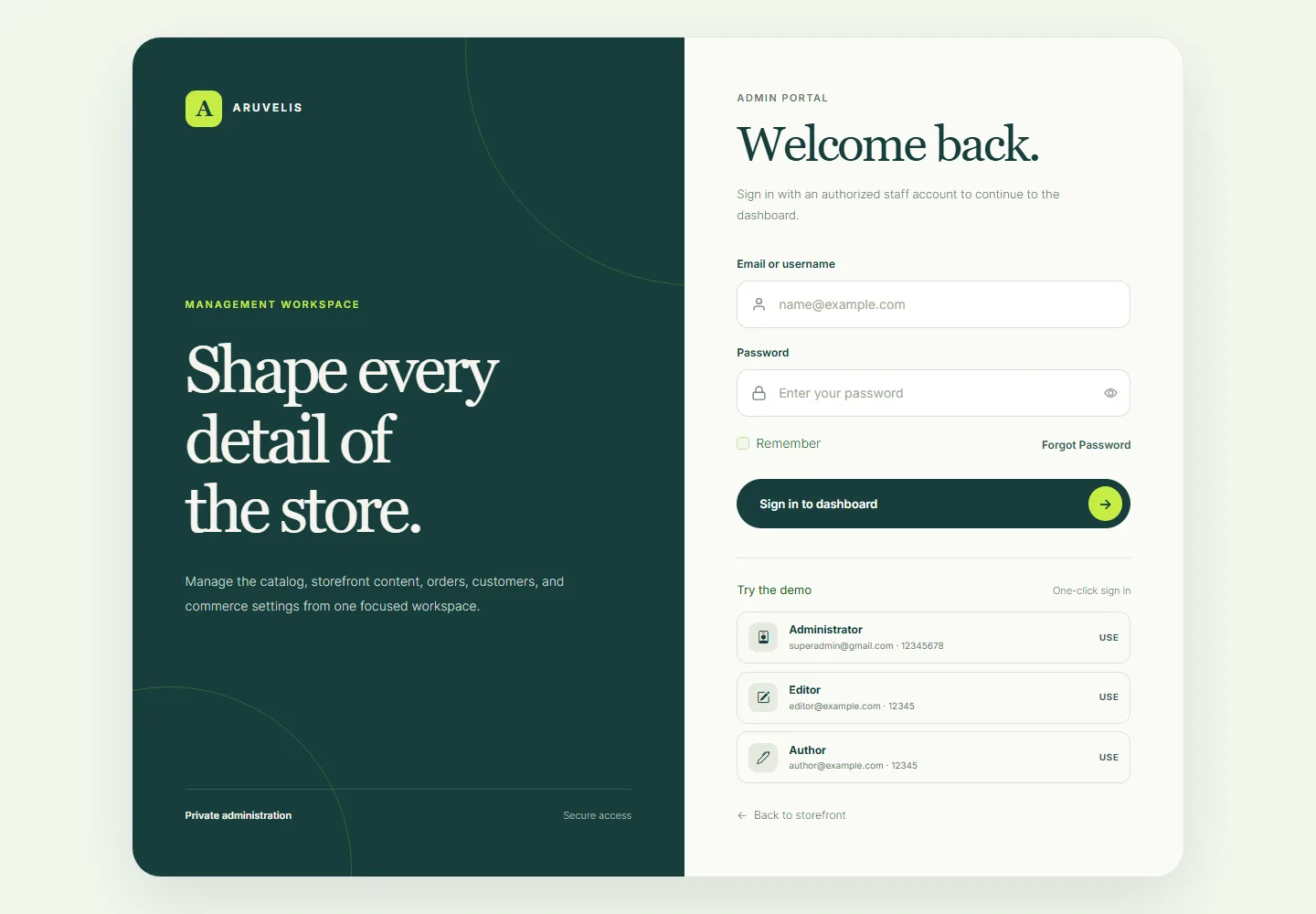
Demo installation & sample data
- Follow the installation steps using an isolated empty database.
- Set
APP_DEMO=true, clear cached configuration, then runphp artisan db:seed --force. - Visit the storefront and admin login. The header exposes the demo admin shortcut in demo mode.
| Public demo account | Password | Purpose |
|---|---|---|
[email protected] | 12345678 | Super-administrator demonstration. |
[email protected] | 12345 | Permission-limited staff demonstration. |
[email protected] | 12345 | Additional permission-limited staff demonstration. |
These are deliberately public demo credentials, not production defaults. Customer accounts register through the storefront; do not assume staff demo credentials are a separate customer demo account.
What the Aruvelis seeders provide
- Roles, starter settings, SEO defaults and demo staff accounts.
- BDT/USD currencies, Bangladesh market, four apparel categories and eight reference catalog products with size variants.
- Homepage section examples, FAQs, information pages, navigation and curated collections such as Everyday essentials and After dark.
- Inside/Outside Dhaka shipping examples, an illustrative 5% VAT rate,
WELCOME10andFLAT200coupon examples. - Eight
AR-DEMO-*order scenarios covering fulfillment/payment states, created only when demo orders do not already exist.
Live demo counts can be higher after manual editing. Example tax and shipping rates are not business or legal recommendations. For production, use a clean installation with demo disabled, configure real business data and remove/replace any example content deliberately. Disabling demo does not delete previously created accounts or orders.
First-store checklist
- Set your brand name, logo, favicon and contact details in Settings.
- Configure an active market and its currency/countries.
- Create categories and upload your licensed product photography.
- Add active products with valid variants, prices and stock.
- Create collections and publish their links.
- Edit and activate homepage sections; verify their schedules.
- Configure destination coverage, shipping charges, tax policy and coupons.
- Configure Cash on Delivery and, if accepting cards, enable Stripe with test keys first. Complete a test-mode purchase, then switch to live keys and run a low-value live test. Read Payment methods before launch.
- Replace example policies, FAQs, navigation links and SEO copy.
- Verify checkout, receipt printing, staff permissions, mail delivery, scheduled jobs, backups and mobile views in staging before accepting real orders.
Configuration is interdependent: a visible product can still be unavailable for checkout if its variant, market price, inventory or shipping destination is not usable.
Browse the storefront
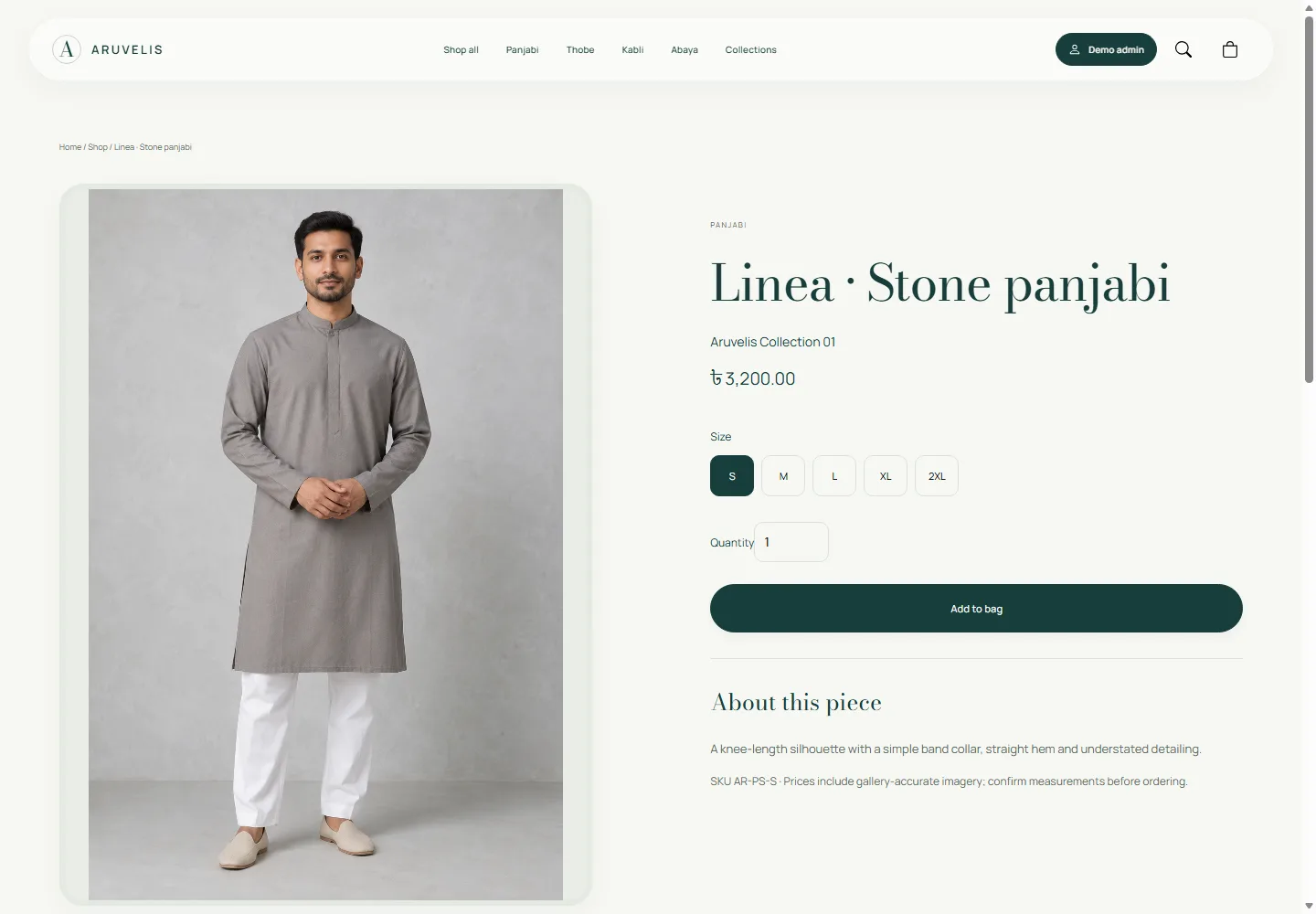
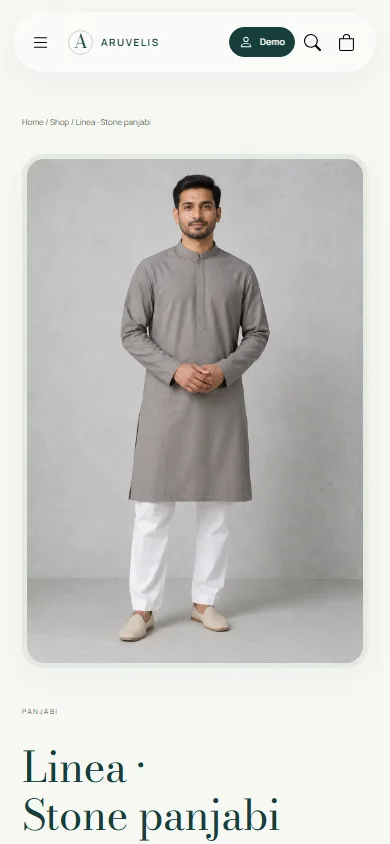
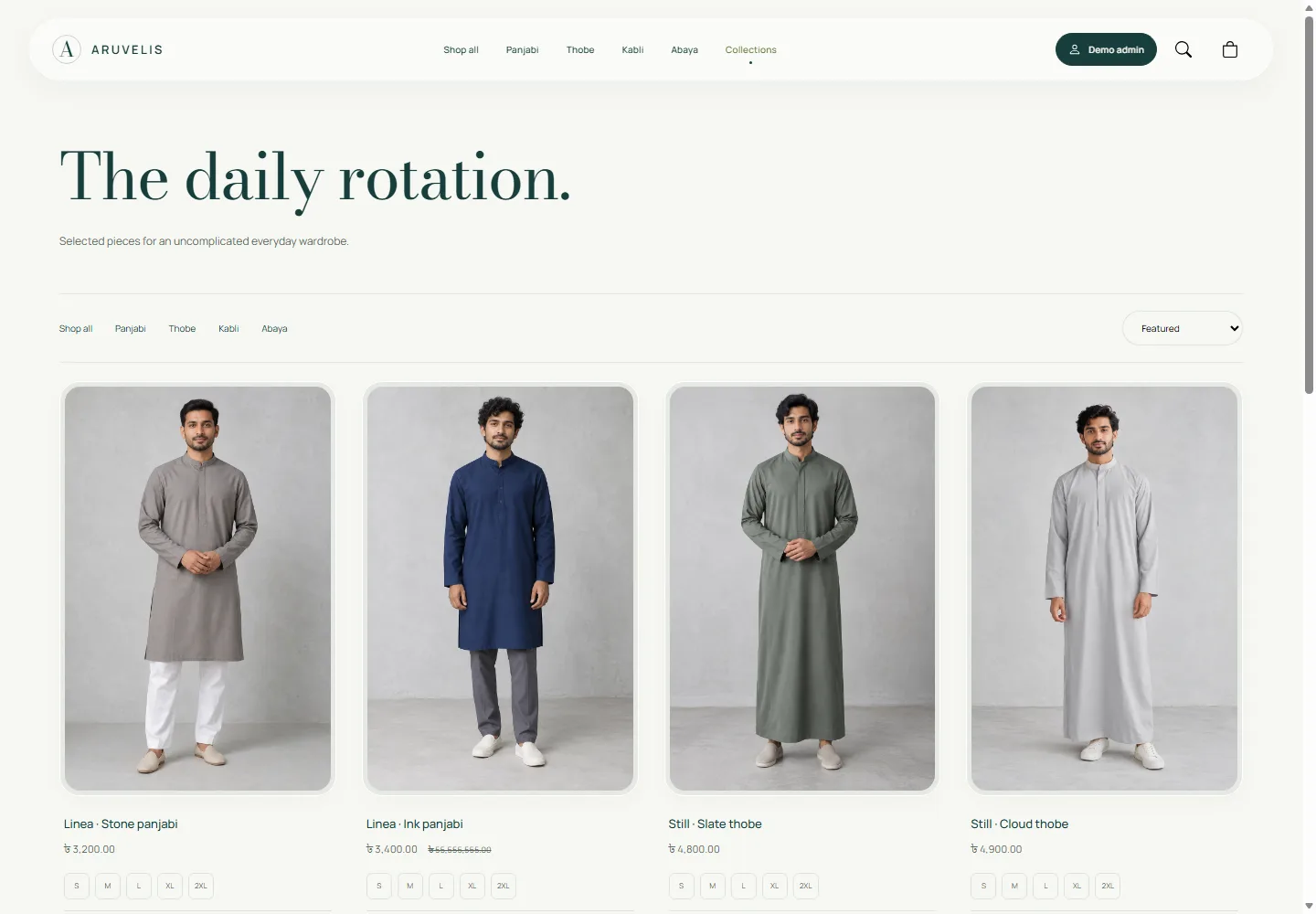
Visitors can use the main navigation, Collections index, category study, shop/search pages and product cards to find products. Opening a product shows its gallery, current price, eligible compare-at price, available size choices and add-to-bag action. Search terms are submitted through the header search interface.
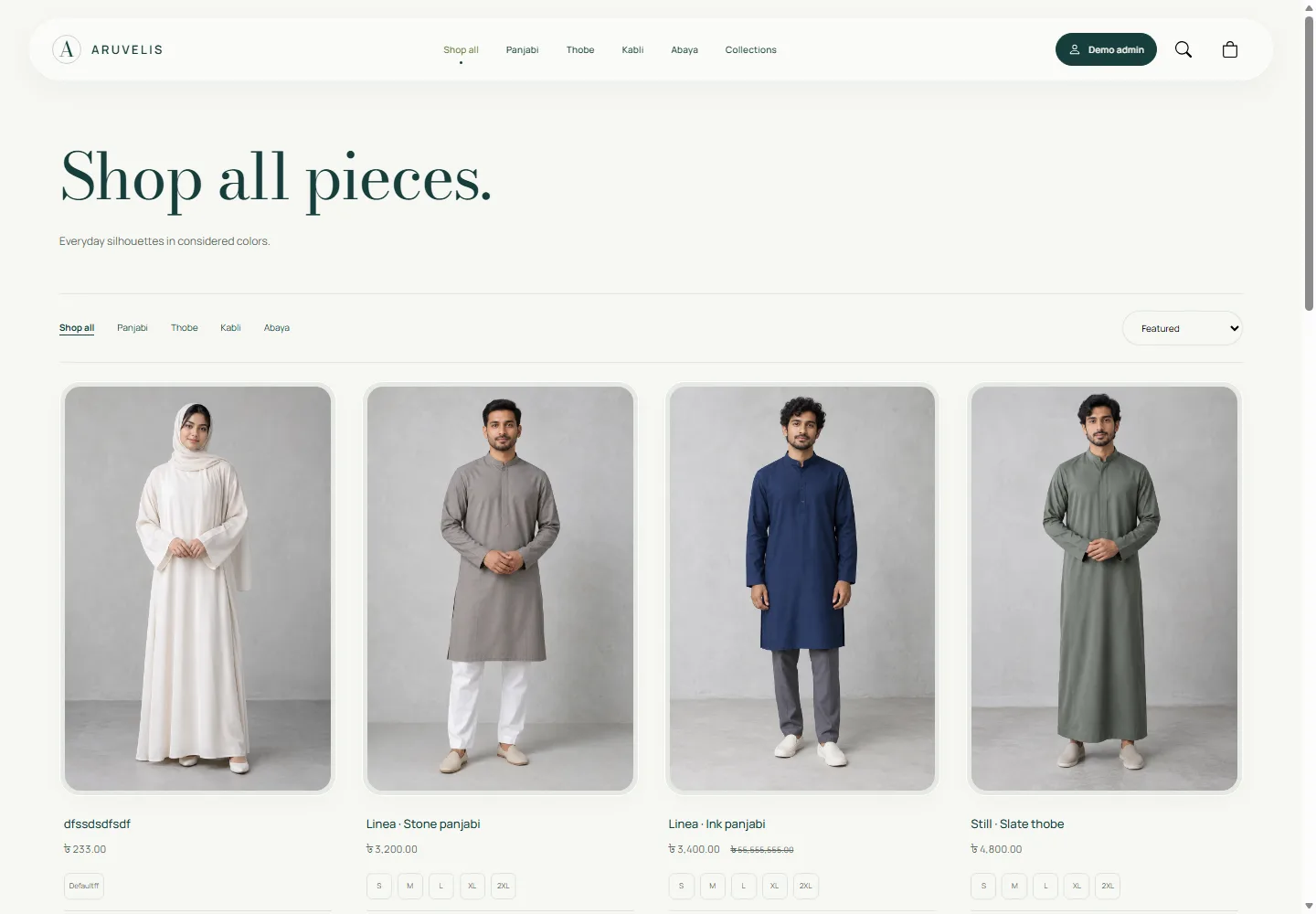
/shop: browse the active catalog.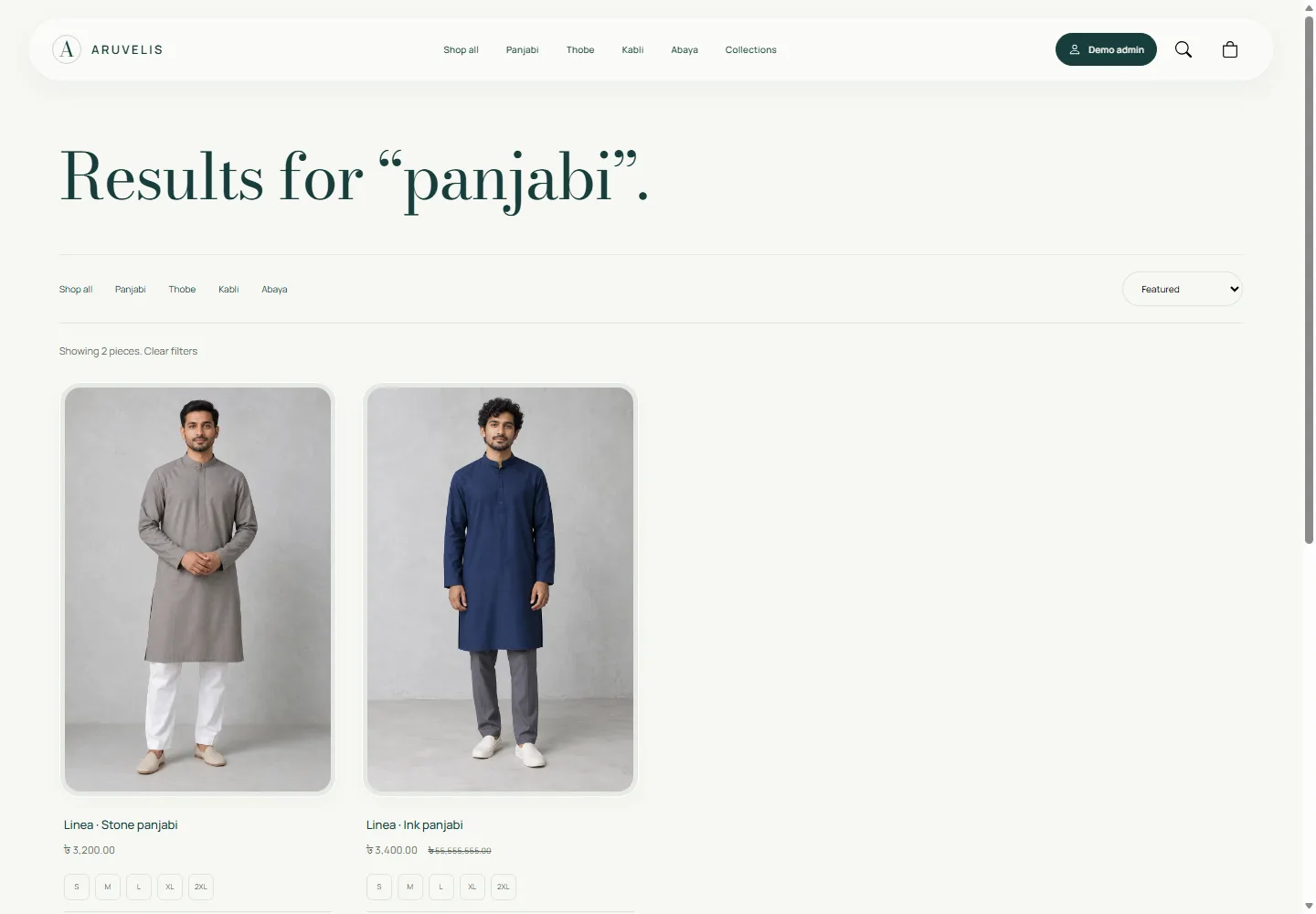
/search?q=panjabi: product search results.
Changing a menu item in admin changes where that link goes; it does not create the destination page or publish an inactive product/collection.
Products & variants
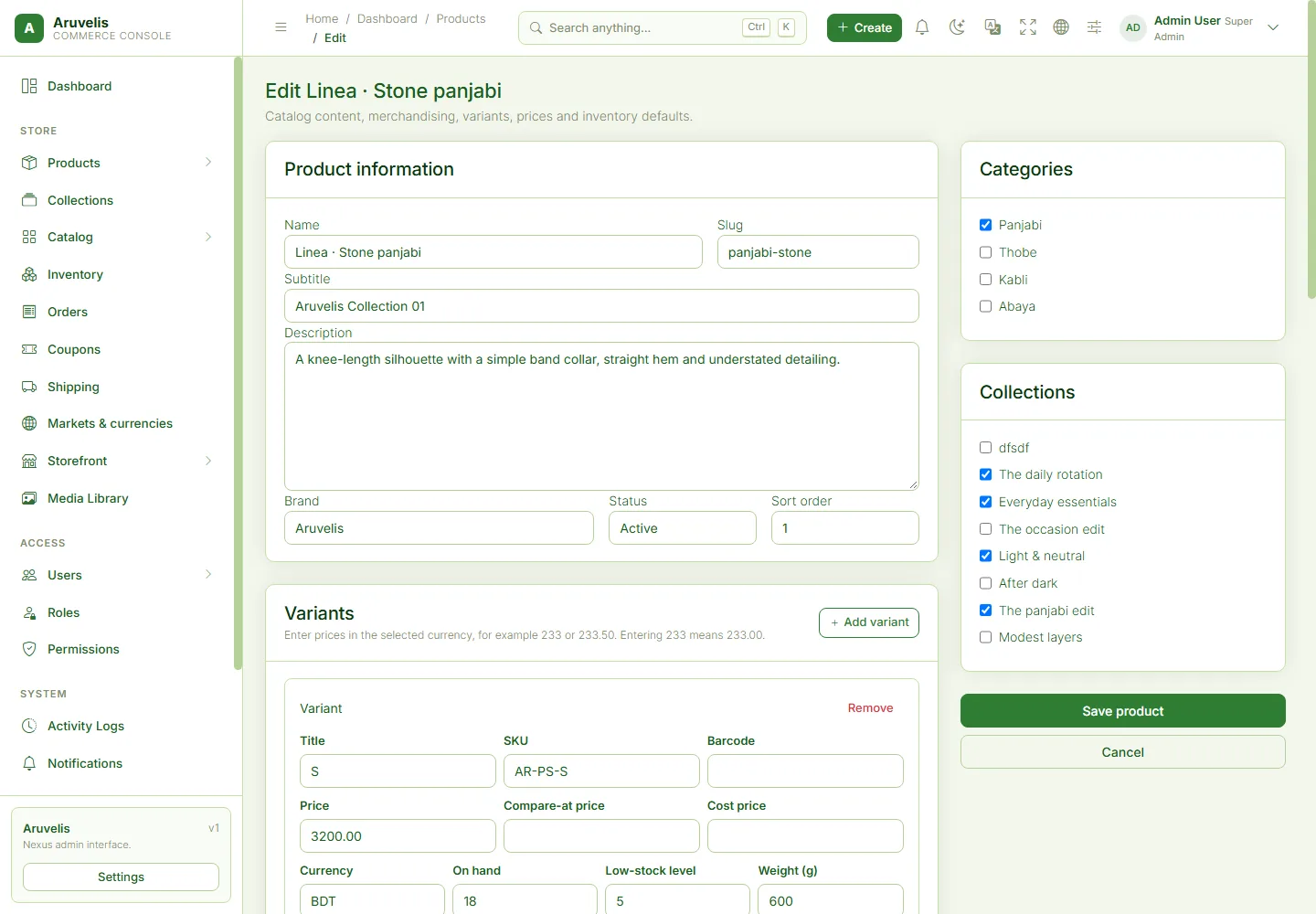
Open: Store → Products → All products or Create product (/admin/products).
- Enter a descriptive name, a unique URL slug, subtitle and description. Keep slugs URL-safe, for example
linen-panjabi-stone. - Select the intended categories/collections and brand. Use active status only when the product is ready to be shown.
- Choose gallery images from the Media Library. Place the primary product photo first and give images meaningful alternative text.
- Add at least one variant. For apparel, use an actual size such as S, M or 54, with a unique SKU. A product without customer-facing choices still needs an internal sellable variant.
- Set the variant's currency, decimal selling price, optional compare-at/cost values, weight and stock settings.
- Save, reopen the product to verify its persisted data, and inspect its public product/category page in the intended market.
| Field | How to use it |
|---|---|
| Status / active variant | A product and its sellable variant both need valid publication/availability settings. |
| SKU / barcode | SKU identifies a variant and must be unique. Barcode is optional inventory metadata, not an automatic scanning integration. |
| Track inventory | Use controlled stock balances. Turn it off only when unlimited availability is genuinely intended. |
| Allow backorder | Allows a sellable variant to be offered despite insufficient immediate stock where the application permits it. Do not enable without a fulfillment plan. |
| On hand / reorder level | Physical quantity and the low-stock warning threshold. Review existing reservation constraints when editing. |
| SEO fields | Product-specific title and description used by public metadata. |
Prices & compare-at prices
In the product form, enter normal decimal amounts: 233 means 233.00, not 2.33. Application services store money as integer minor units. For a two-decimal currency, 233.00 is stored as 23300; developers must not mix display amounts and storage amounts.
A compare-at price is a higher reference/original price, for example selling price 2,500 and compare-at 3,000. The storefront shows a strike-through only when a valid compare-at price exceeds the active selling price. A blank/equal value is not a discount. Different variants can have different active prices.
Market-specific price records can affect what the customer sees. If editing a base price appears to have no effect, verify the selected market, active variant and market-price data, then reload after cache invalidation. Do not fix a mismatch by manually dividing a database value by 100 without reviewing the currency precision.
Categories & collections
Categories
Open Store → Catalog → Categories. Use categories for stable product families such as Panjabi, Thobe, Kabli and Abaya. Create a unique slug, set active status, assign products and check /categories/{slug}. Subcategories provide an additional catalog grouping where used. Avoid deleting an in-use category just to remove a menu link; edit the navigation instead.
Collections
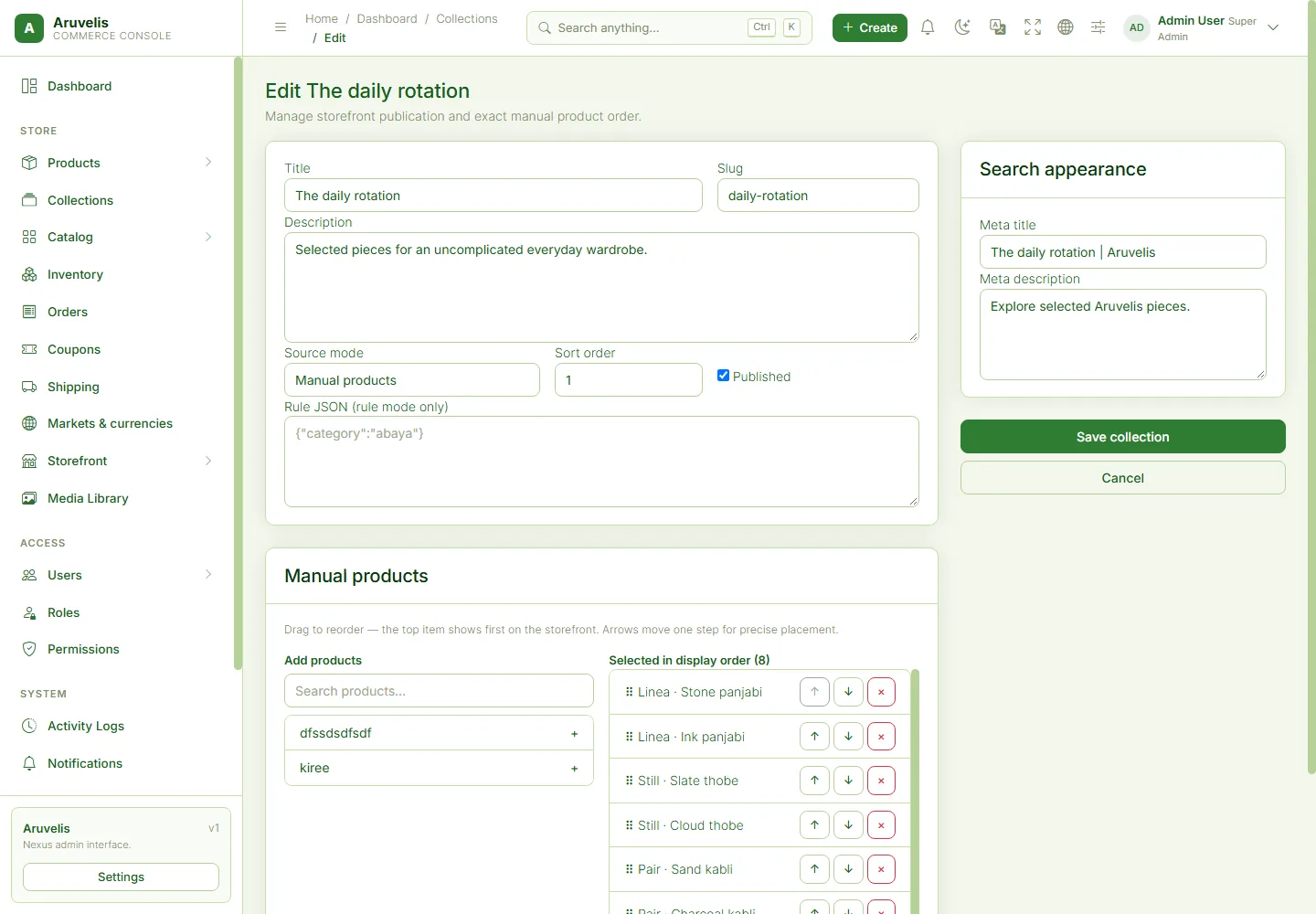
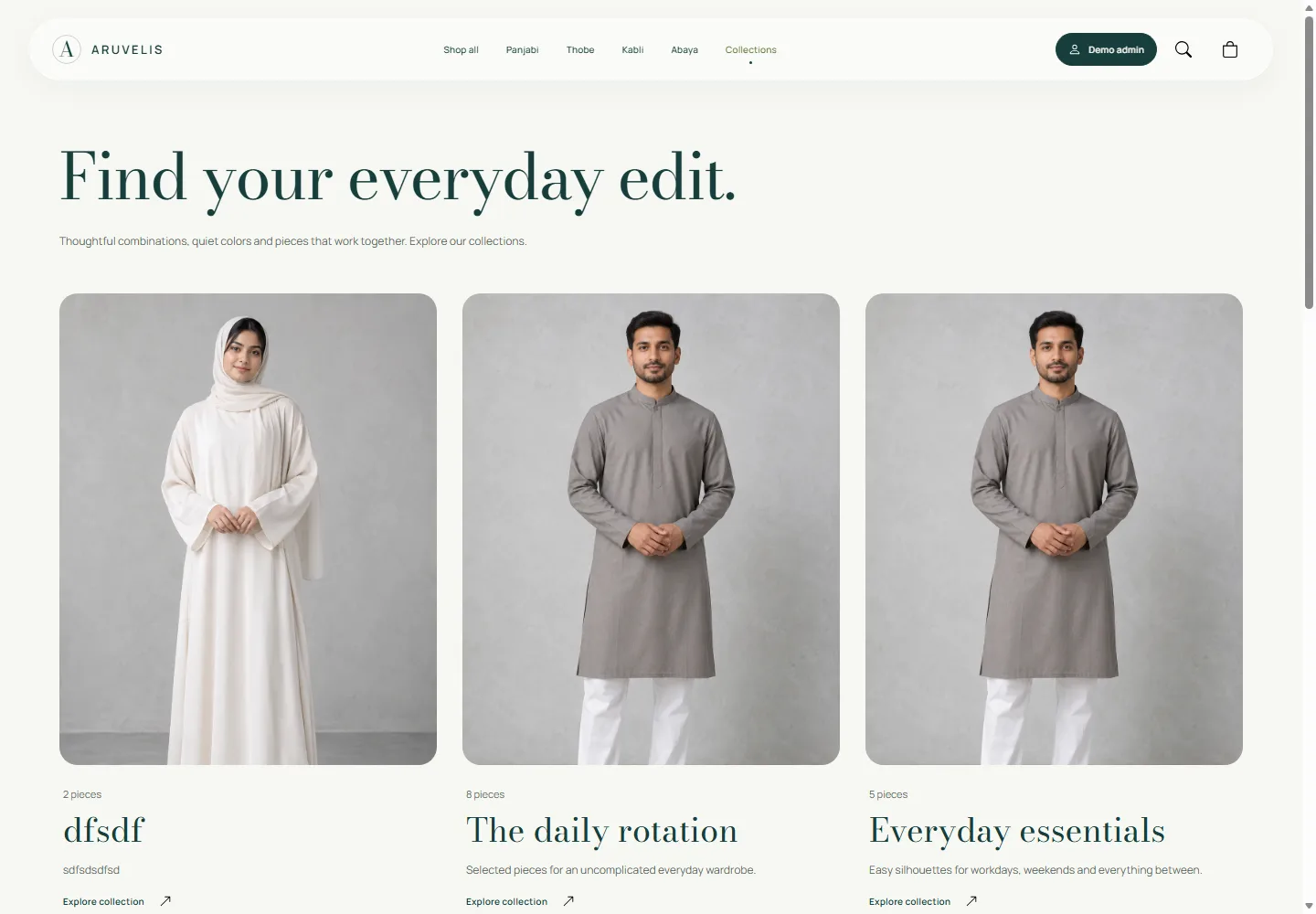
Open Store → Collections (/admin/store-collections). Collections are curated edits such as Everyday essentials, Occasion edit or After dark.
- Create a title, unique slug and customer-facing description.
- For a manual collection, select its intended products and review their ordering.
- Set its active/publication state and optional SEO fields; save.
- Visit
/collections, then/collections/{slug}. Link it from Navigation or a suitable homepage call to action.
Use manual collections for predictable merchandising. A rule collection relies on developer-supported rule evaluation; do not assume arbitrary JSON creates a complete visual rule builder.
Stock & adjustments
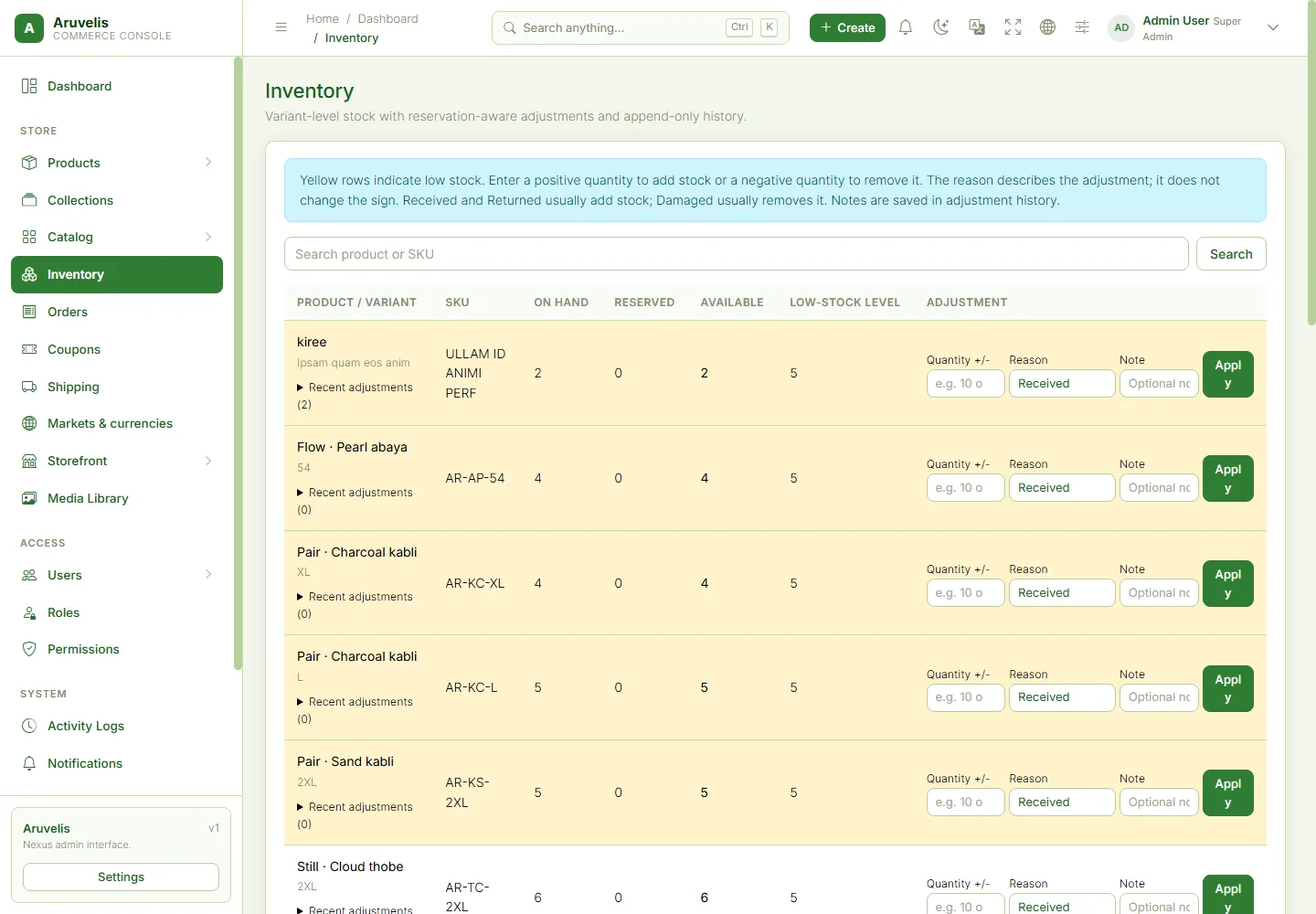
Open: Store → Inventory (/admin/inventory). Stock is variant-level.
| Value | Meaning |
|---|---|
| On hand | Physical quantity recorded for the variant. |
| Reserved | Units held by active reservations and not freely sellable. |
| Available | On-hand quantity minus reserved quantity for tracked stock. |
| Low-stock level | Reorder threshold. Yellow/orange highlighting signals low available stock, not a failed order. |
| Adjustment | A signed quantity change, not a replacement total. To go from 10 to 13, enter 3; to go from 10 to 8, enter -2. |
- Find the exact product/SKU.
- Enter a non-zero signed adjustment.
- Select Received, Damaged, Returned, Correction or Manual. These are audit reasons, not order statuses, and they do not replace the quantity sign.
- Add a short explanation/reference in Note, then click Apply on that row.
- Confirm the saved balance. Open Recent adjustments or its History page to inspect the quantity, reason, note and actor.
When orders affect stock
Checkout reserves stock. Shipping consumes the order's reservation and deducts the physical units. Delivery normally does not deduct again; it reconciles eligible older shipments without double-consuming committed stock. Cancellation releases applicable holds. A recorded refund after shipment restocks the order quantity in the current implementation, so only record it when your real return/refund procedure justifies that stock coming back.
Reservation expiry is scheduled every five minutes. An expired hold is no longer guaranteed stock: fulfillment checks actual availability. Do not repair stock by editing reservation rows manually; investigate the variant's history and order events.
Homepage sections
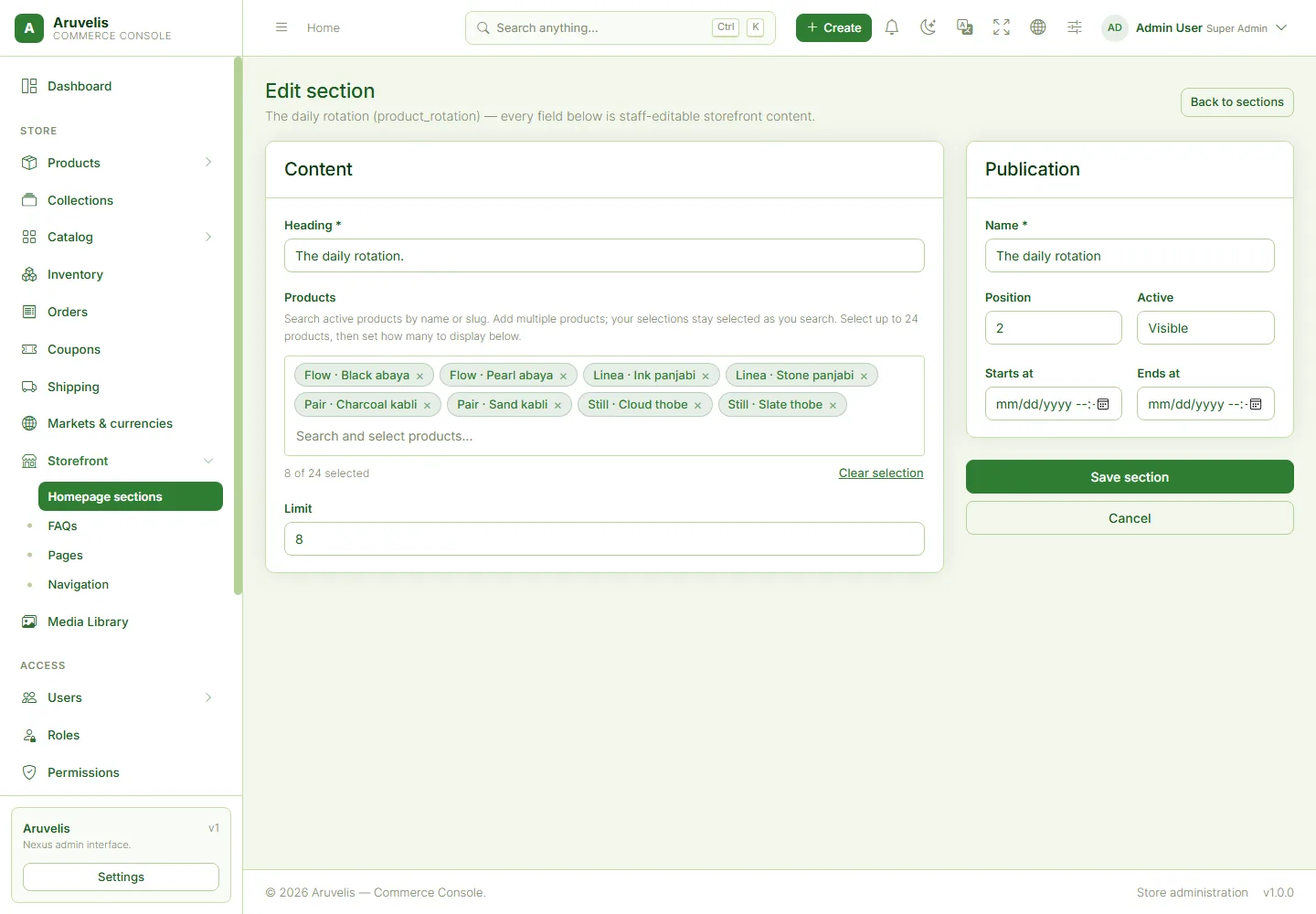
Open: Storefront → Homepage sections (/admin/storefront/sections). Each section has a type, internal name, active switch, position and optional start/end schedule. Lower positions appear first. A section must be active and within its schedule to render.
| Section type | Editable content |
|---|---|
| Hero / banner | Eyebrow, formatted heading, description, image, image alternative text, caption and CTA label/destination. |
| Category study / categories | Heading, intro, selected category IDs, image preview and result limit. |
| Product rotation / products | Heading, manually selected products and result limit. |
| Brand story / brand | Editorial heading, two body areas, note, image and CTA. |
| FAQ | Heading, introduction and number of eligible FAQ records to show. |
- Create or edit the section of the correct type.
- Fill the type-specific fields. Use the existing searchable product select: search, select a product, then search again to add another.
- Choose relevant active catalog records; use a limit large enough for the intended selection.
- Use a working destination such as
/shopor/collections/occasion-editfor CTA links. - Set visibility, position and schedule, save, then check the public homepage in desktop and mobile views.
Headings allow only the supported inline formatting, such as emphasis, bold and line breaks. Arbitrary scripts/layout HTML are not a supported content input. A missing section is often inactive, out of schedule, empty or populated with unavailable records.
Pages, FAQs & navigation
Storefront → Pages manages customer information pages, reached at /pages/{slug}. Replace example delivery/returns and privacy wording with policies approved for your business. Storefront → FAQs manages the records used by FAQ sections, including active state, locale and position.
Storefront → Navigation manages menu locations/items. Choose a clear label and actual URL; ensure the menu/item is active and ordered correctly. Public destinations include /shop, /collections, /categories/panjabi and valid policy-page URLs. Changing a label without changing its URL does not create a new destination.
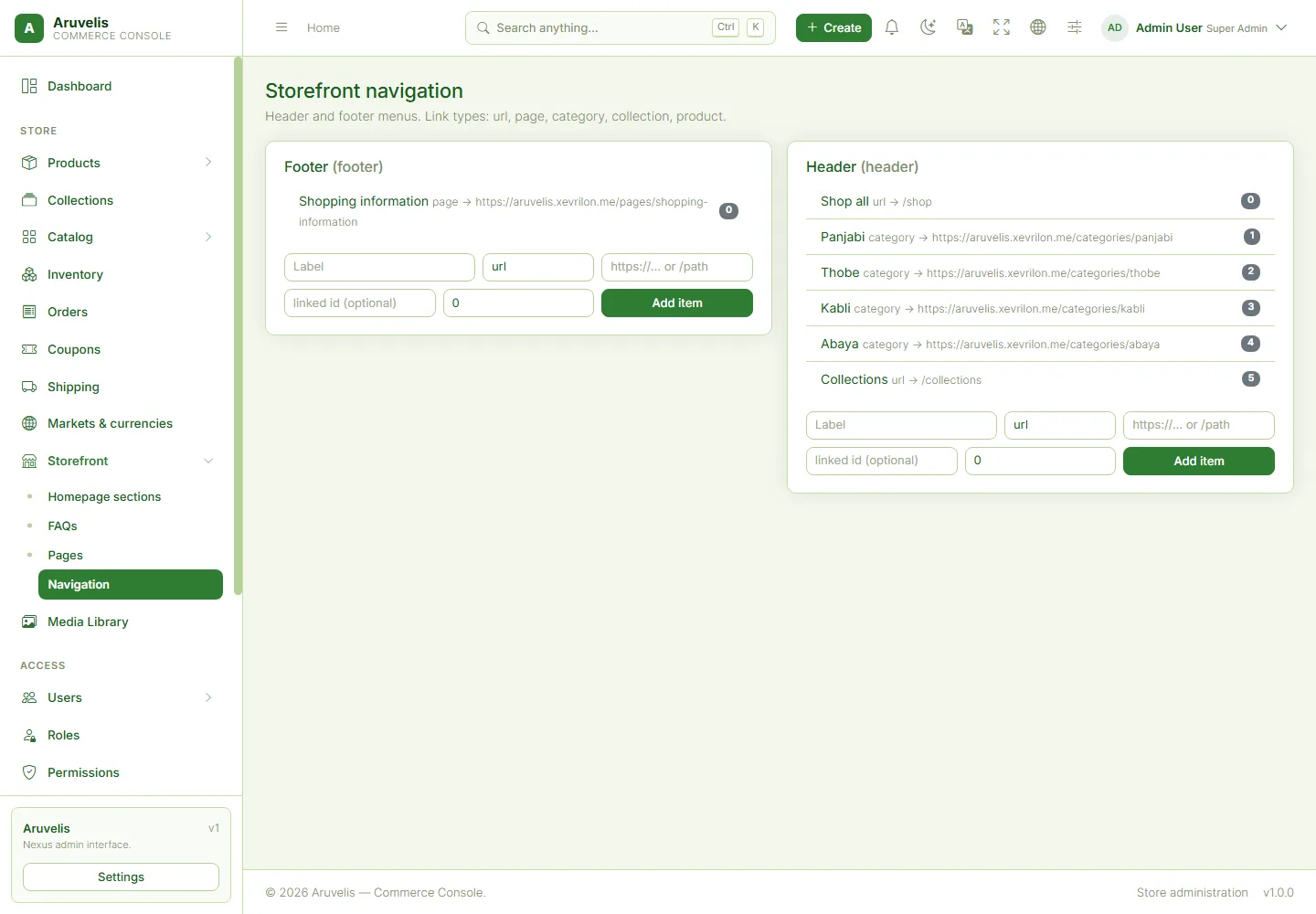
Use meaningful labels and avoid links that all point to the homepage. After removing a product, collection or page, update links that previously referenced it. The admin does not infer an appropriate replacement destination.
Markets & currencies
Open: Store → Markets & currencies (/admin/commerce/settings).
- Create/verify the currency: ISO code, display name, symbol and precision.
- Create the market with its currency, default locale/timezone and applicable two-letter country codes.
- Activate the market and select valid store defaults.
- Ensure the relevant variants have usable pricing in that market/currency.
- Configure shipping coverage and tax handling for the same destinations.
- Use the public market selector and complete a staging checkout for each supported destination.
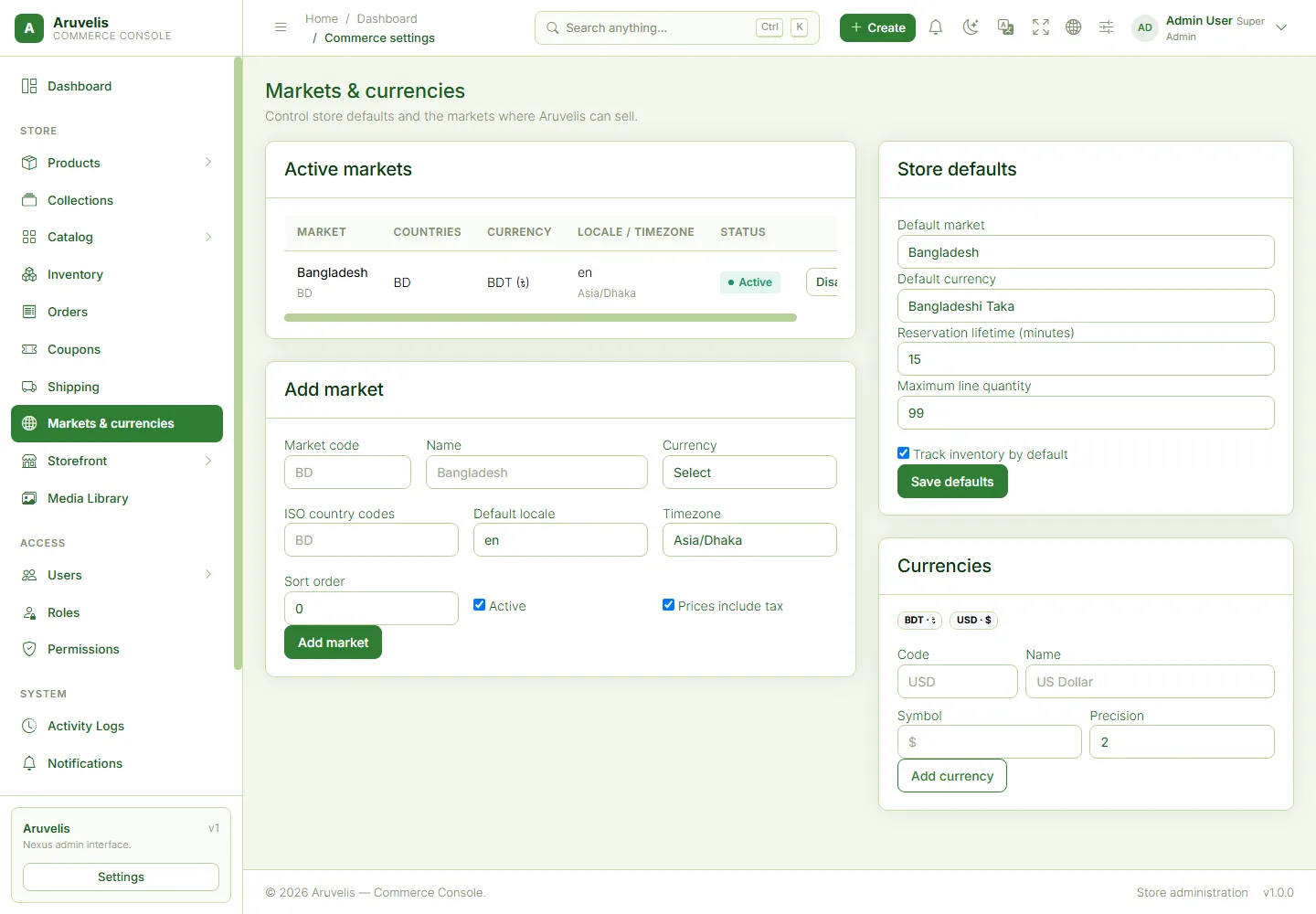
The example baseline is Bangladesh/BDT. A second currency existing in the database does not make every product purchasable in it. There is no promise of live exchange-rate conversion or country-specific tax compliance. Confirm your shipping, payment, language and legal requirements before enabling another country.
Shipping & taxes
Open: Store → Shipping (/admin/shipping). Create an active zone, associate destination country codes and add an active method to that zone. Methods specify a customer-facing name, rate, currency, minimum subtotal and ETA text.
Important units: the current shipping form/service uses integer minor-unit fields. With BDT's two-decimal precision, 8000 means BDT 80.00; a subtotal threshold of 100000 means BDT 1,000.00. Do not apply the product form's decimal convention to fields explicitly named rate_minor or min_subtotal_minor.
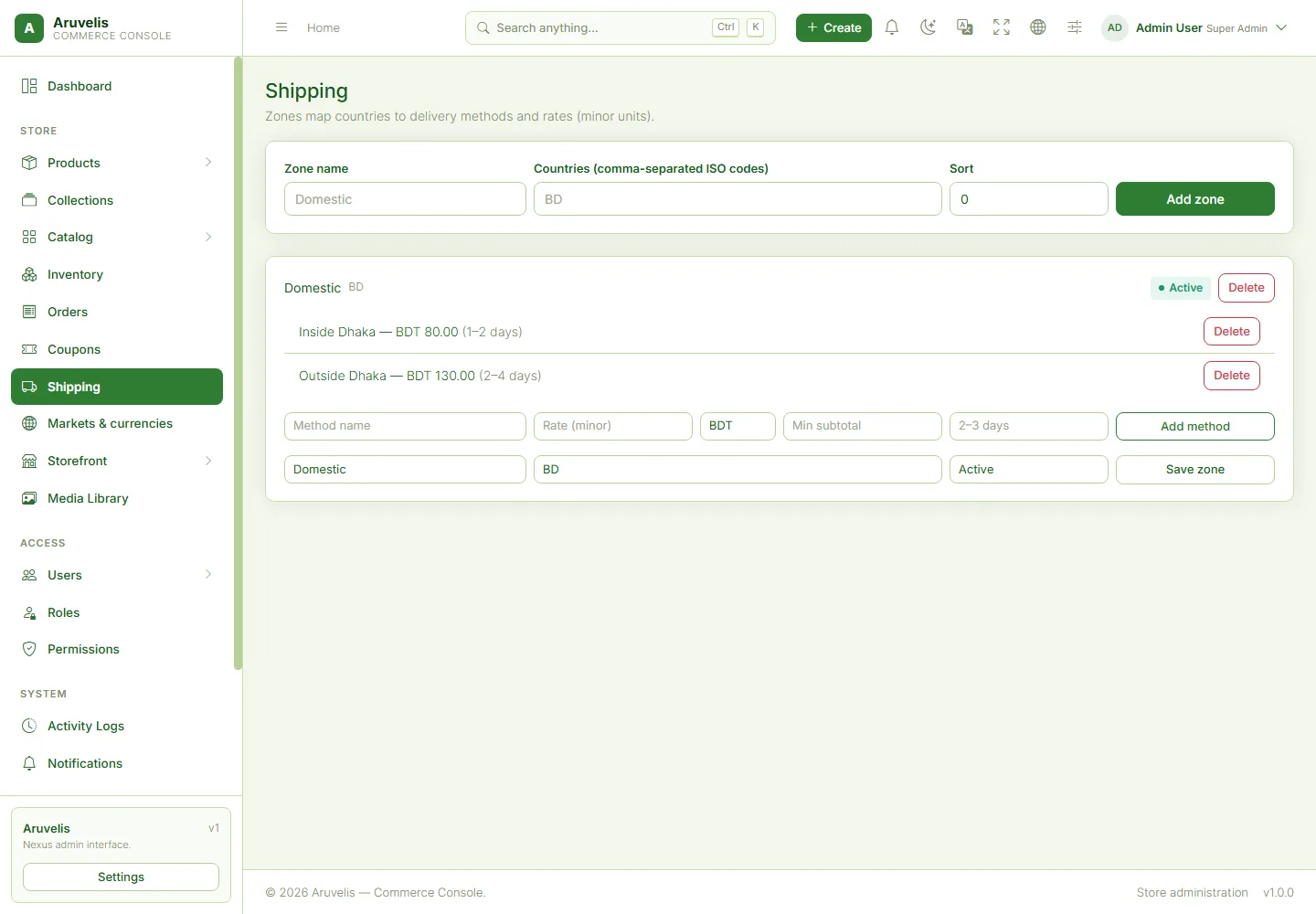
Inside Dhaka and Outside Dhaka are illustrative method labels in the country-based Domestic zone. They are not an automatic street/city-geocoding service. Review customer selection and your fulfillment policy. The current admin changes a method's rate by deleting/recreating the method; consider the operational impact before doing so.
Tax is computed from configured tax-rate records. The seed example is BD VAT at 500 basis points (5%). Do not treat it as tax advice. If your installation does not expose a dedicated tax editor, a developer must manage tax records through the existing model/service workflow and verify totals before launch.
Coupons
Open: Store → Coupons (/admin/coupons). Create a unique code, choose percentage or fixed discount, set its value, minimum subtotal and any available validity/usage restrictions, then activate it.
WELCOME10 illustrates a 10% discount above BDT 1,000. FLAT200 illustrates a BDT 200 fixed discount above BDT 2,000. These are examples, not permanent customer promises. Percentage values are whole percentages; fixed monetary storage values use minor units. Read the current field label before entering an amount.
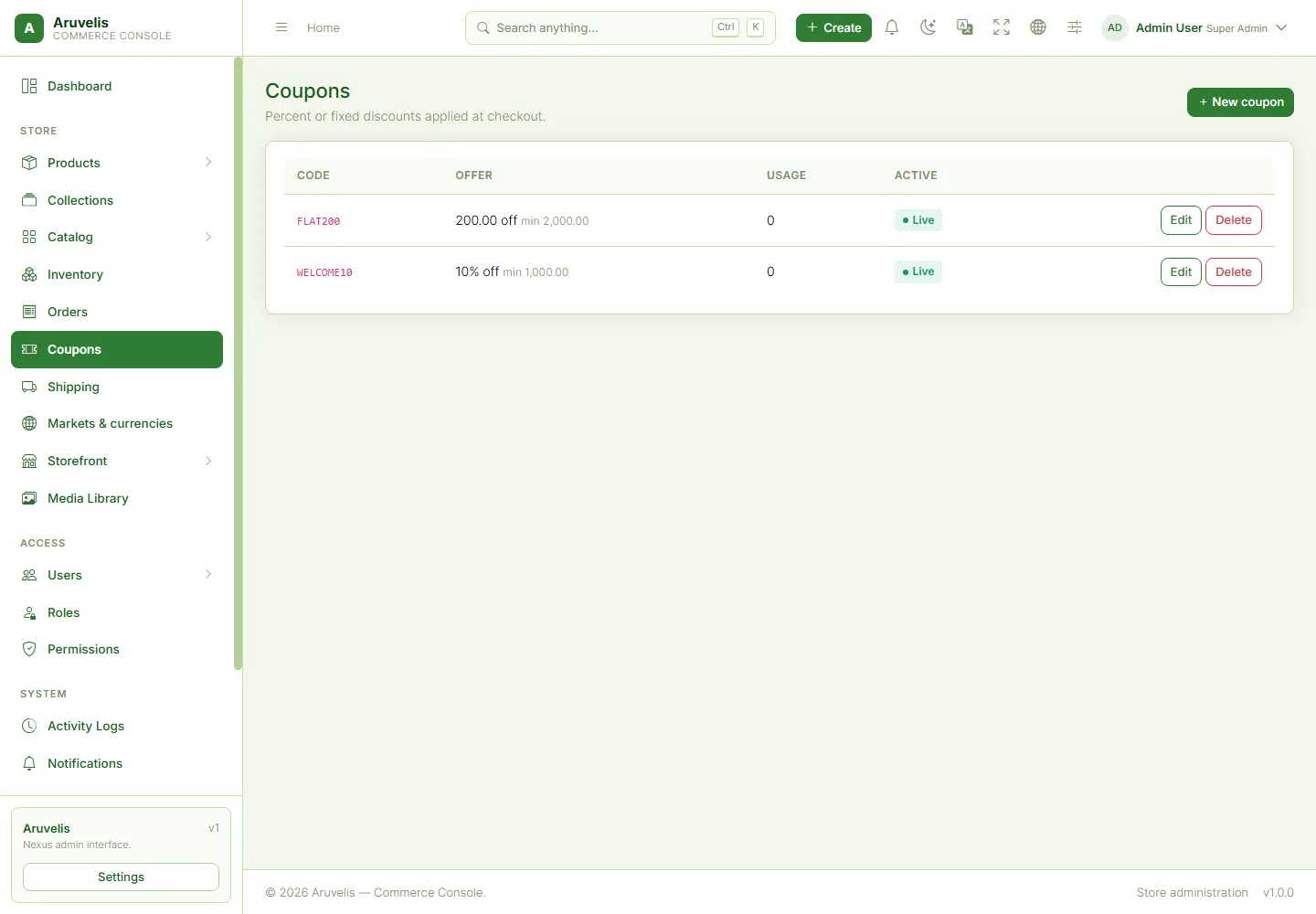
Customers apply/remove a coupon at checkout. A code can be rejected because it is inactive, outside its validity window, below the minimum subtotal or otherwise ineligible. Verify the final discount, tax and total rather than assuming the entered code always applies.
Cart & checkout
- Open a product, select an available size and add it to the bag.
- Open the bag drawer or
/cart. Check variant, quantity and current price; update/remove lines as needed. - Proceed to
/checkout, enter contact and shipping information, and select the destination country. - Update shipping options when the destination changes, choose an eligible method and optionally apply a coupon.
- Review subtotal, discount, shipping, tax, currency and final total.
- Select Cash on delivery or Stripe. For Stripe, enter card details in the Stripe card field; only a tokenized PaymentMethod ID is sent to Aruvelis. Submit Place order once.
- Keep the order reference on confirmation. Use Download/print receipt or Continue shopping as needed.
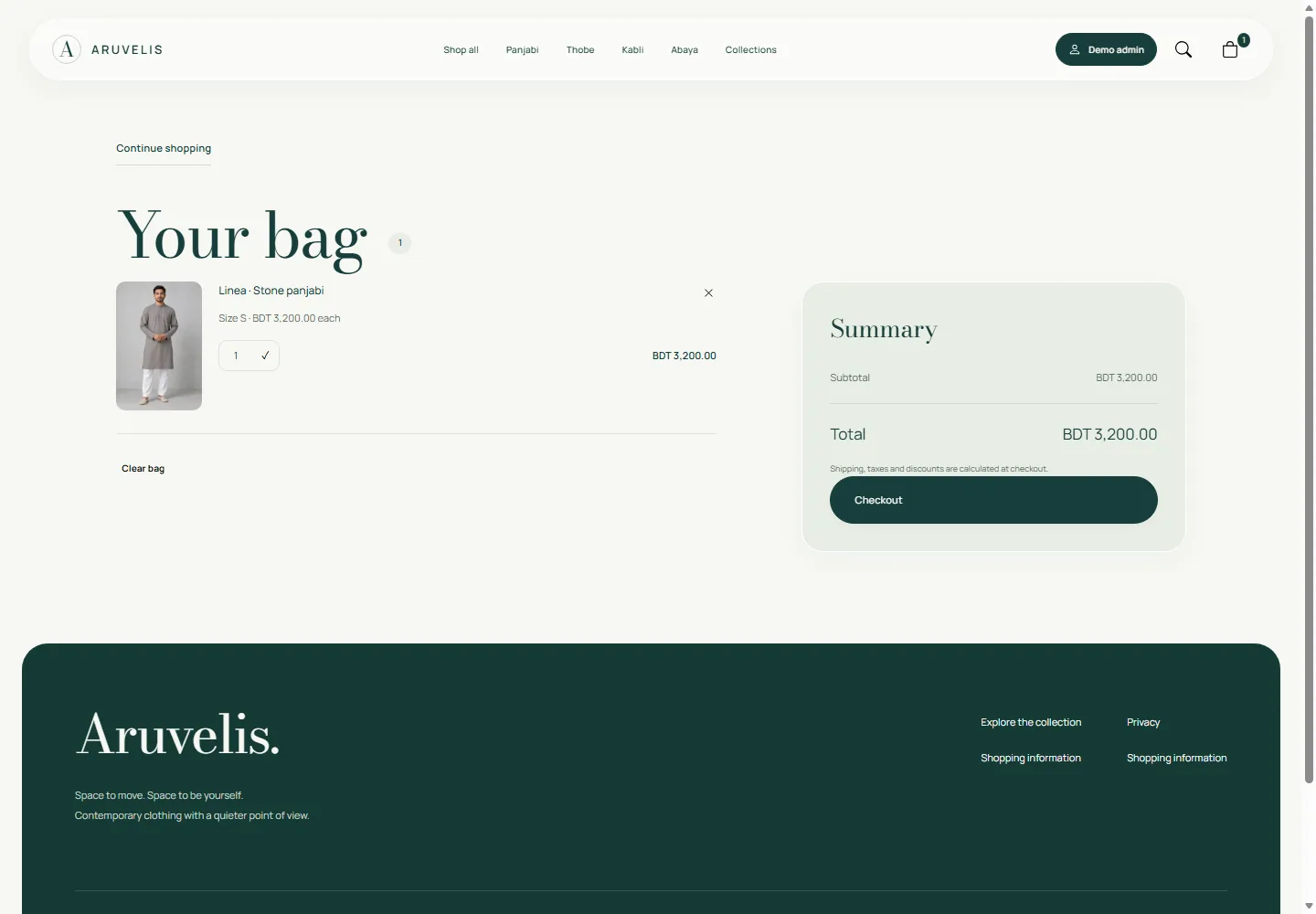
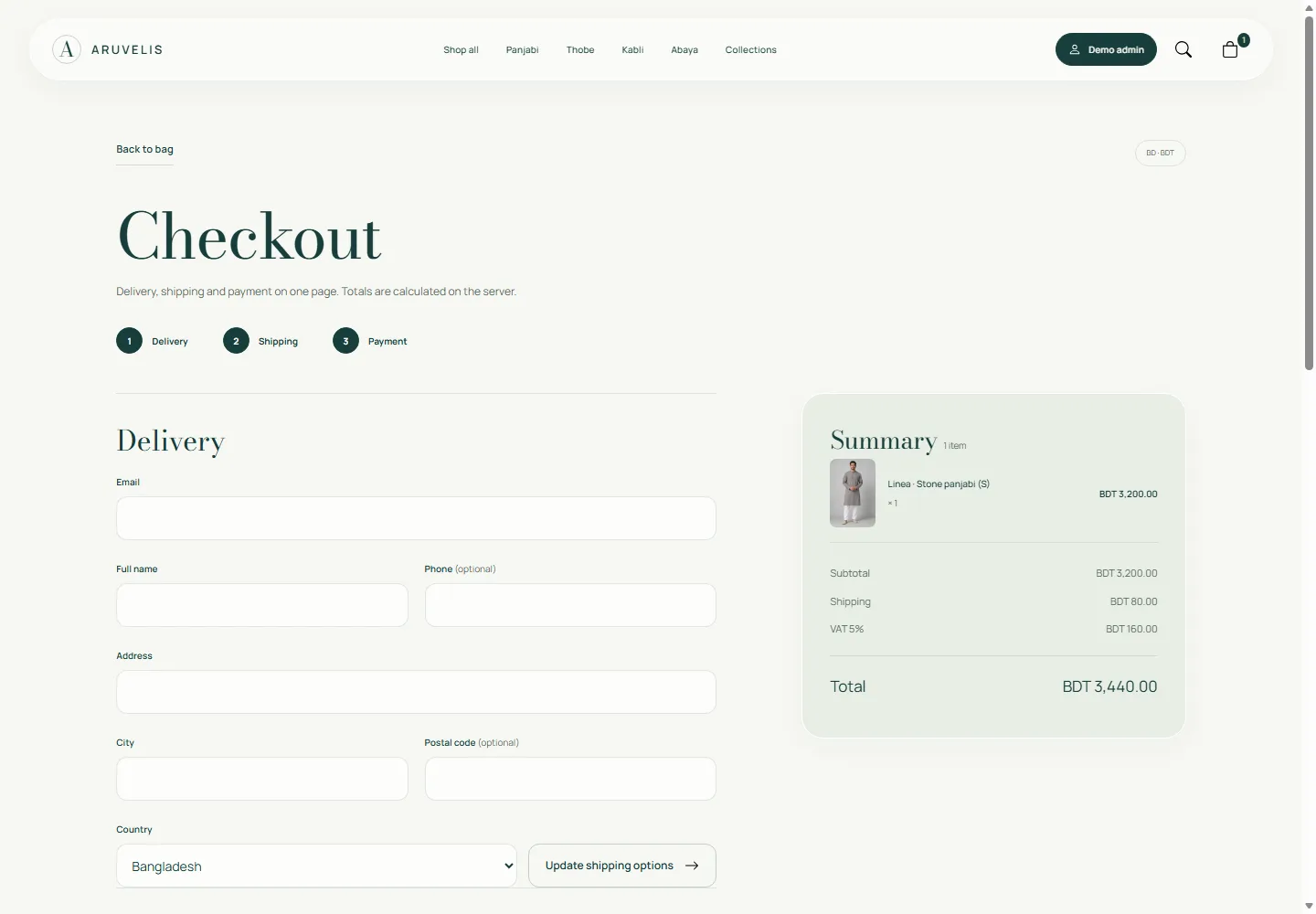
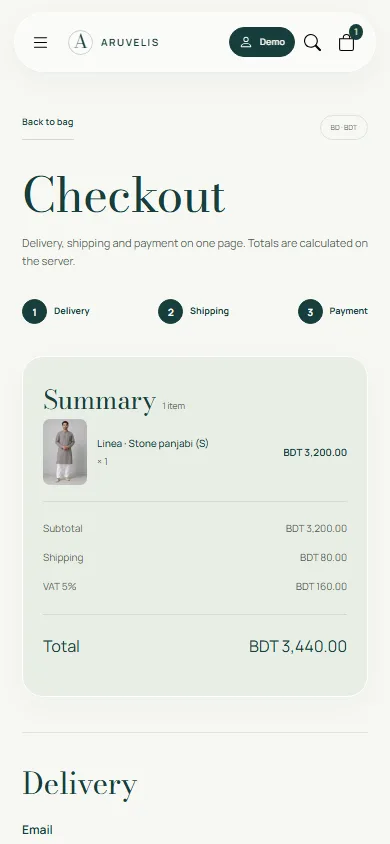
Adding to the bag is not a guaranteed stock reservation indefinitely. Stock and prices are checked again during checkout. If a page reports that checkout is unavailable for the selected market, review market activation, variant prices, eligible countries, shipping methods and currency compatibility.
Payment methods: read before going live
APP_DEMO does not change payment behavior.How checkout chooses a method
The payment list comes from PaymentGatewayRegistry: COD and Stripe. Stripe is preselected on a new checkout. The Stripe card fields appear only while Stripe is selected. Stripe.js converts the card details into a PaymentMethod ID such as pm_...; only that ID is posted to Aruvelis. Card number, expiry and CVC are sent directly to Stripe and are never stored by the application.
If Stripe is disabled or has no secret key, it is still listed, but submitting it returns an error instead of charging. Enable and configure Stripe before launch, or direct customers to COD.
Stripe setup
- Sign in at
dashboard.stripe.comand, while testing, keep the dashboard in Test mode. - Open Developers > API keys and copy the test publishable key (
pk_test_...) and test secret key (sk_test_...). - In Aruvelis open Settings > General > Payment gateway settings (
/admin/settings?tab=payment_gateway_settings). - Paste the publishable and secret keys, turn on Enable and save. The secret key is stored encrypted with
APP_KEY; leave the field blank on later saves to keep the existing value. - Test Stripe only checks that the fields are present and the keys start with
pk_andsk_. It does not contact Stripe or prove that a charge will succeed. Complete a real test-mode checkout instead. - Pay with a Stripe test card, confirm the PaymentIntent in the Stripe dashboard and confirm that the Aruvelis order is paid.
- Switch both keys to live values (
pk_live_...andsk_live_...), save and complete a low-value live purchase before announcing the store.
Supported checkout flow
After the customer reviews delivery, shipping, coupon and totals, the server creates the order, reserves stock and creates and confirms a PaymentIntent for the order total and currency. A succeeded intent is saved as a paid payment and the order becomes paid. A declined card or failed request returns the customer to checkout with the gateway message; the database transaction is rolled back, so no order or reservation is kept and the cart remains available for another attempt.
Limitations
- Cards only. The Stripe card Element is used. Wallets, bank redirects, buy-now-pay-later and other payment methods are not exposed.
- No 3-D Secure/SCA challenge. The PaymentIntent is confirmed immediately. A
requires_actionresult is reported as an error; no authentication window opens. Cards or regions that require authentication cannot complete until a developer adds that flow. - No webhook endpoint. A webhook secret field is stored, but this release does not register or process Stripe webhooks. Later asynchronous events and disputes are not applied automatically.
- No automatic Stripe refunds. The admin Refund action changes Aruvelis records and restocks eligible shipments only. Refund the card in Stripe separately.
- No idempotency key. The application prevents duplicate orders for the same session checkout token, but it does not send an idempotency key to Stripe. If the connection fails after Stripe accepted a charge, reconcile the Stripe dashboard before asking the customer to pay again.
- No saved cards, subscriptions, manual capture or partial payments. One card charge is attempted per checkout submission.
- Currency support depends on Stripe. The order currency is sent lowercase (for example
bdtorusd); Stripe and your account must support it. - Test and live keys must match. Do not mix a test publishable key with a live secret key.
Cash on delivery
COD creates a pending payment. Staff can record receipt of payment through an authorized order action; delivery of an order with a pending COD payment records cash collection. Verify the cash actually arrived before treating the payment as reconciled.
Admin refund/payment-status actions record application state; they are not proof of a bank transfer, gateway refund or accounting reconciliation. Validate both COD and Stripe in staging before accepting real orders. The detailed setup and test checklist is in Documentation/PAYMENTS.md.
Orders & receipts
Open: Store → Orders (/admin/orders). Filter/search orders, open a reference, inspect its lines, totals, destination, payment records and timeline. Only perform the action appropriate to the order's current state.
| Action | Behavior |
|---|---|
| Confirm | Moves a pending order to confirmed. |
| Start processing | Requires confirmed state and payment readiness; COD can be prepared before collection. |
| Ship | Requires processing state; records tracking code and consumes stock reservations. |
| Deliver | Requires shipped state; records delivery and eligible COD collection without deducting the same stock twice. |
| Cancel | Only eligible unpaid pending/confirmed orders; releases active holds. |
| Refund | Only eligible paid orders. Updates payment/order records and restores shipped/delivered quantities in the current workflow. Handle real money and returned goods separately. |
| Mark paid | Staff records payment receipt on an eligible non-closed order. Do not use it to simulate an unverified real payment. |
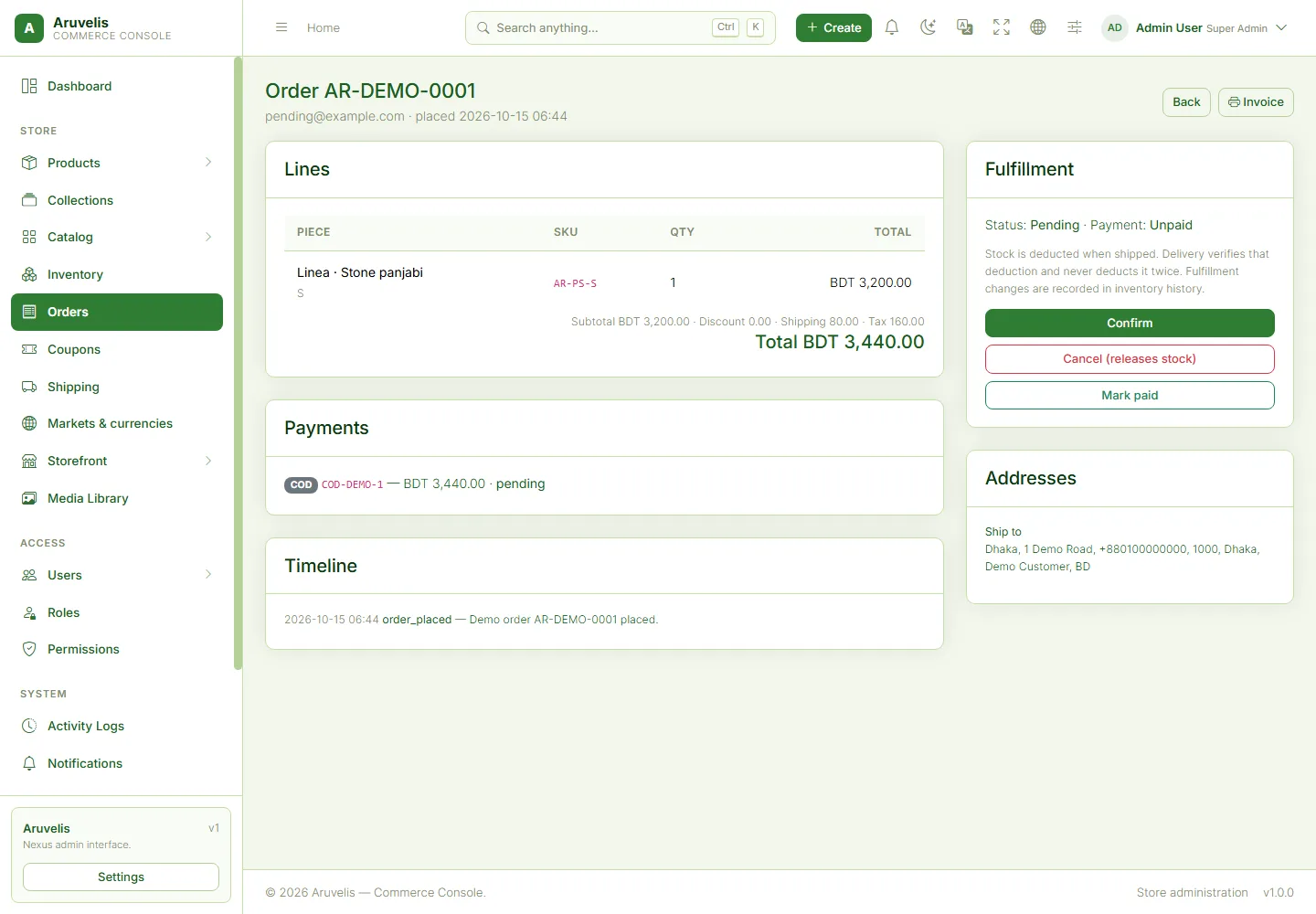
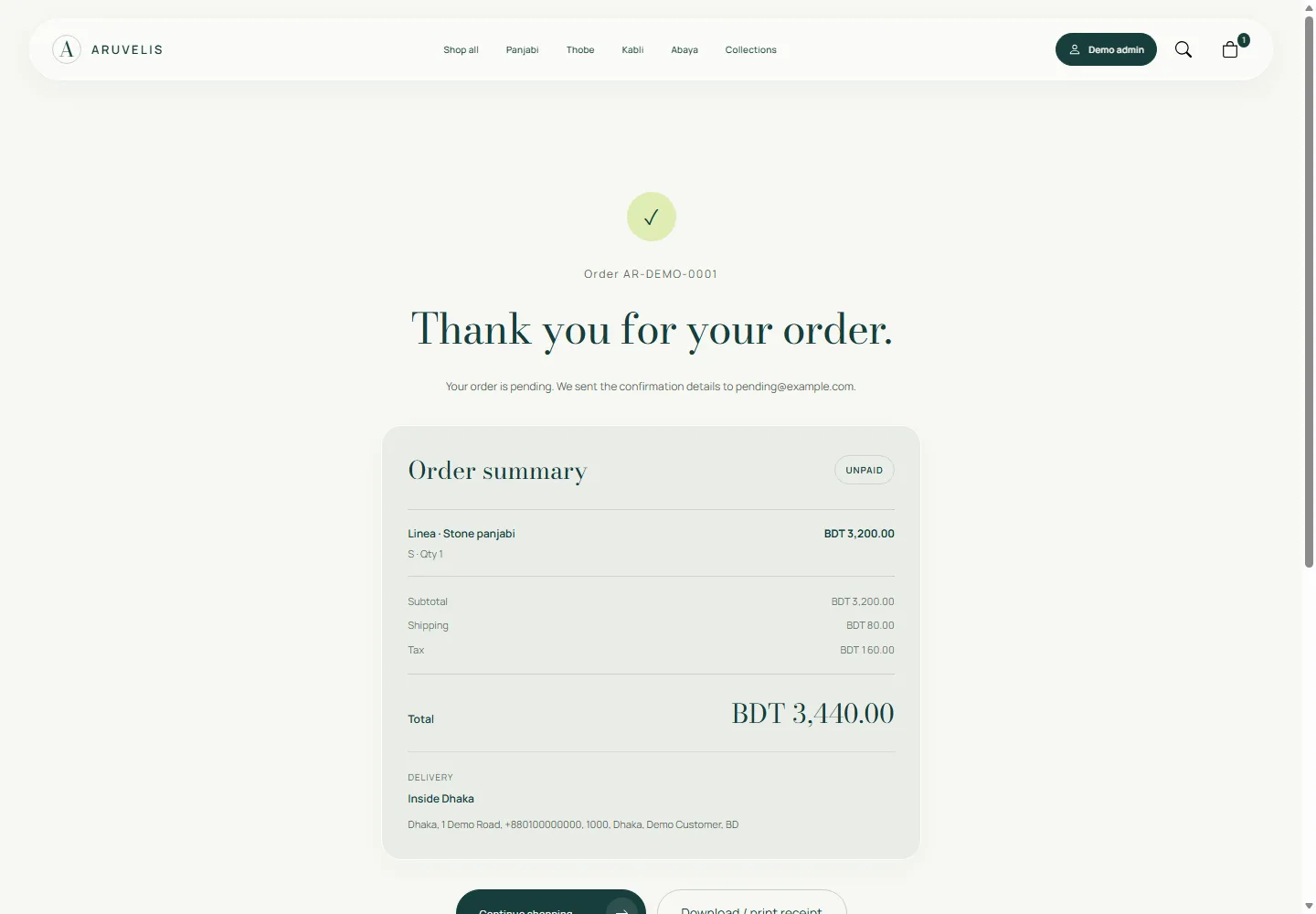
Confirmation and printing
Customers receive an order reference on confirmation. Use its receipt button, choose A4 or an appropriate paper size, check print preview and then print/save PDF. Printer-specific narrow rolls, browser headers/footers and margins can change pagination. Share the receipt only with the intended customer; confirmation URLs contain unguessable references and should be treated as private links.
Correct an order mistake
Use the order page's undo/return action for the most recent eligible staff change. This is a guarded step-by-step correction, not a dropdown allowing arbitrary status replacement.
- Refresh the order and inspect the timeline and proposed prior state.
- Confirm which payment/stock effects the previous action had.
- Provide a clear reason and submit the available reversal.
- Review the new timeline and balances. If another reversal is needed, repeat only after checking the next proposed prior state.
The service refuses stale-page submissions and conflicting independent stock/payment changes. If it says inventory is insufficient, replenish/reconcile the actual stock and investigate rather than editing database statuses. Unrelated later inventory receipts are not intentionally rolled back.
Customer accounts
Customers use /register and /login, not /admin/login. In their account they can view orders, open order details, manage addresses, reorder and cancel eligible orders.
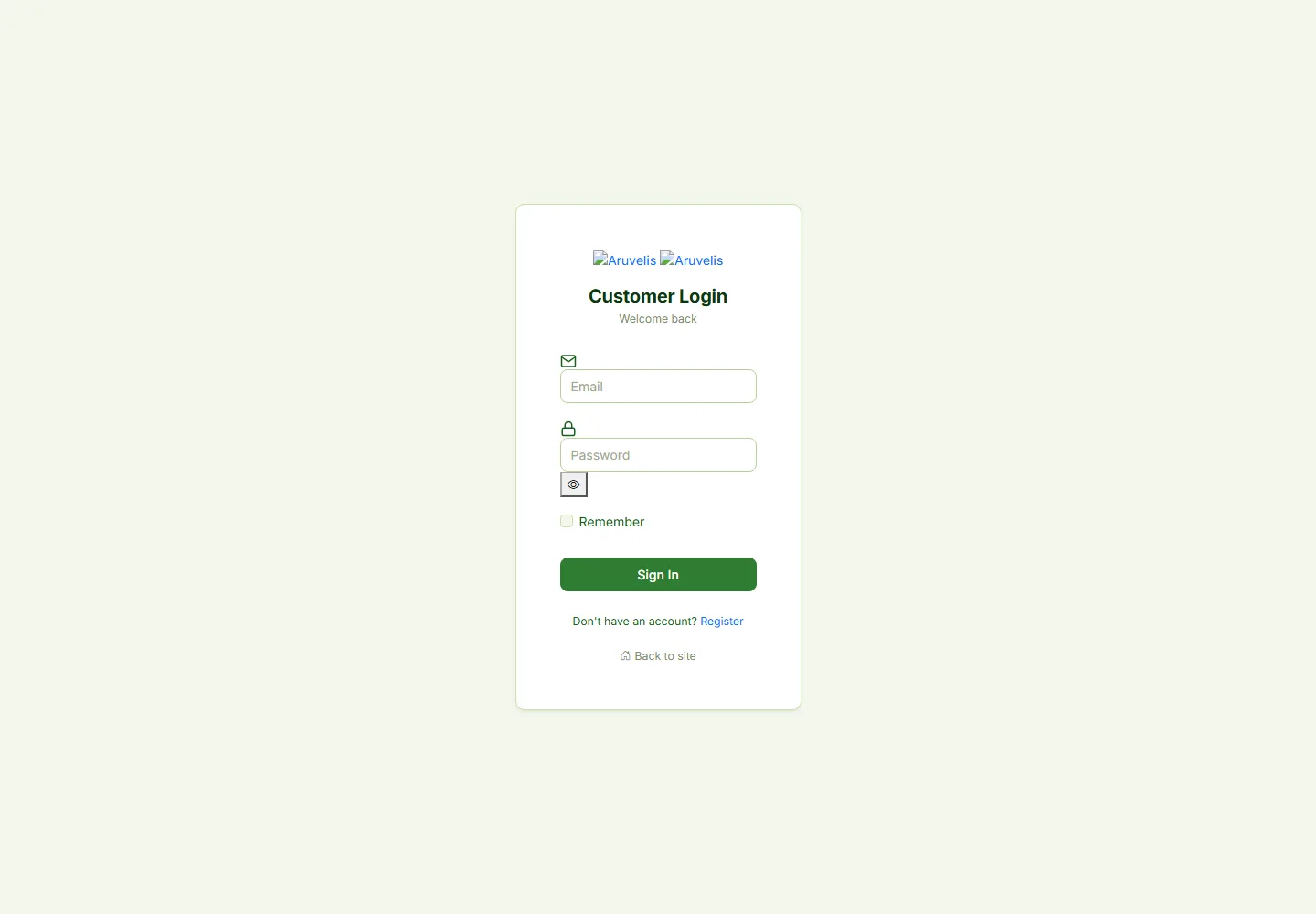
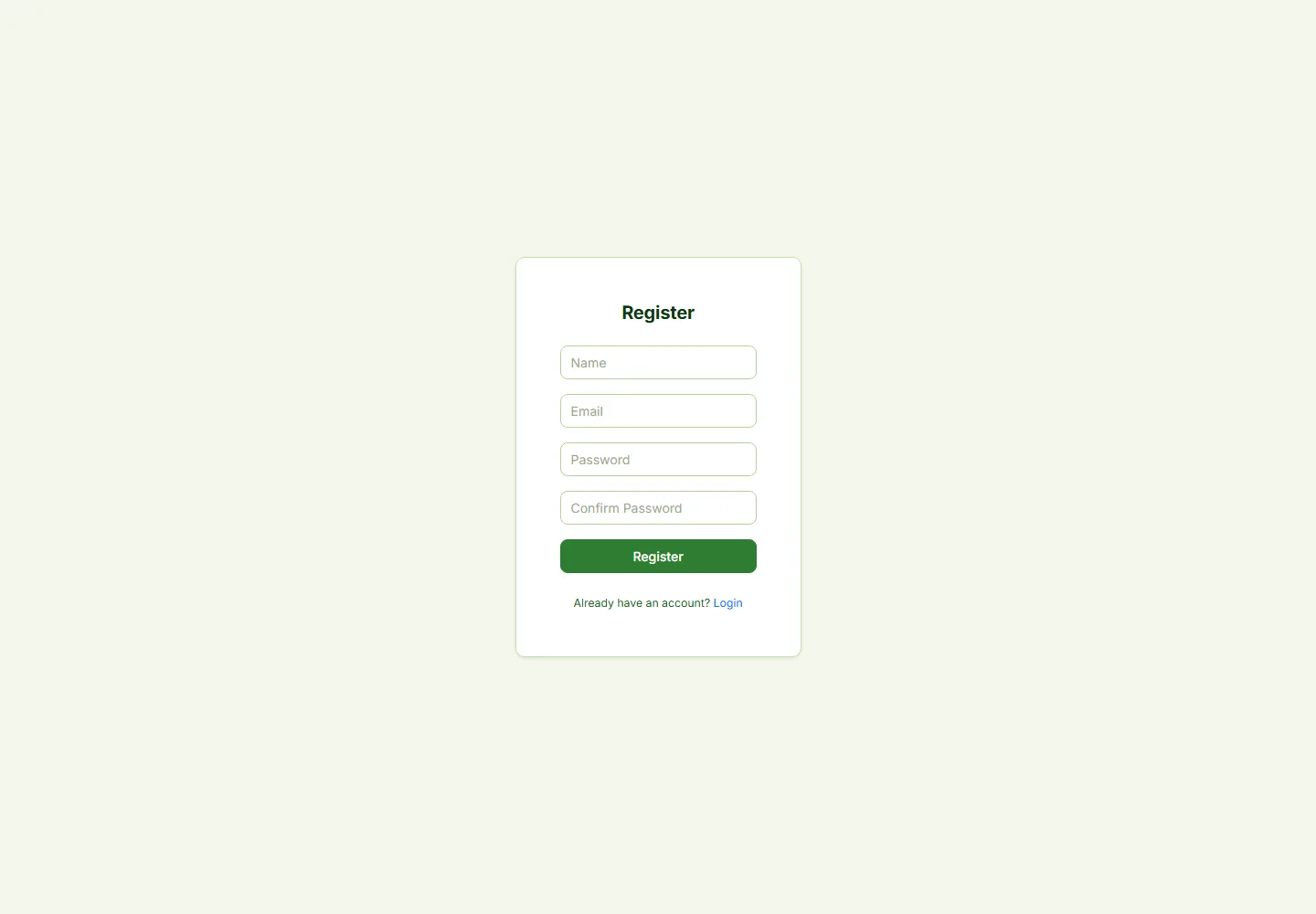
Orders are not exposed to other signed-in customers through account order pages. Reorder rebuilds a bag using current catalog conditions, so removed products, inactive variants, changed prices or low stock may change the result. Address changes do not rewrite the shipping-address snapshot on an already placed order.
Google/Facebook login requires valid provider credentials and a matching callback URL configured in Settings → Social login and in the provider's developer console. Do not promise a working social button before testing the actual provider configuration.
Nexus dashboard & staff access
After staff login, /admin/dashboard provides commerce overview widgets and relevant shortcuts. The sidebar groups Store, Access and System tools. Use the existing search/command interface to reach authorized screens. On a phone, open and close the navigation with the menu control.
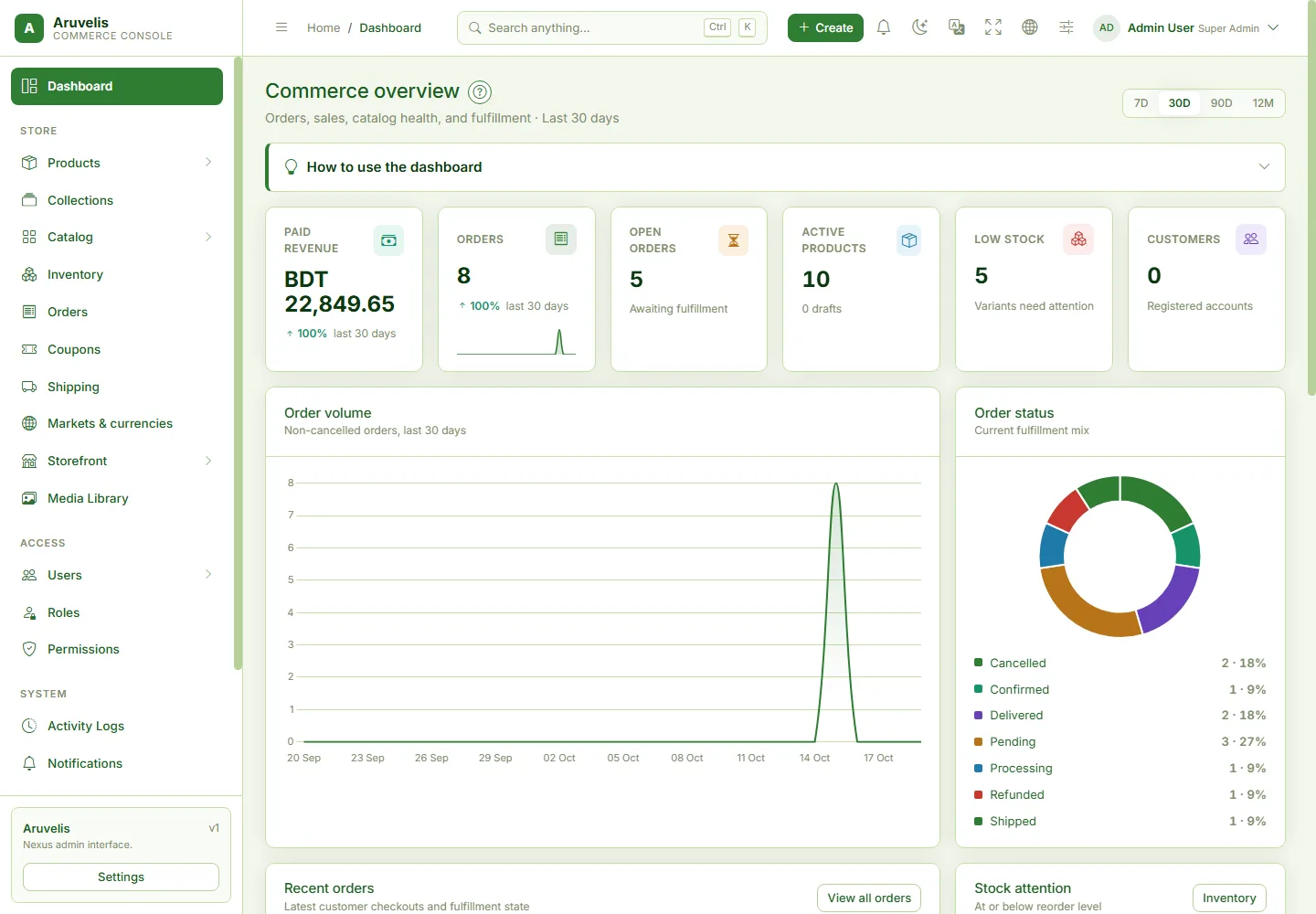
Access → Users and Roles controls staff access. Assign least privilege: a catalog editor should not automatically receive refund, permission-management, backup-deletion or settings access. Menu visibility is permission-filtered, and server-side authorization still applies when a URL is entered directly.
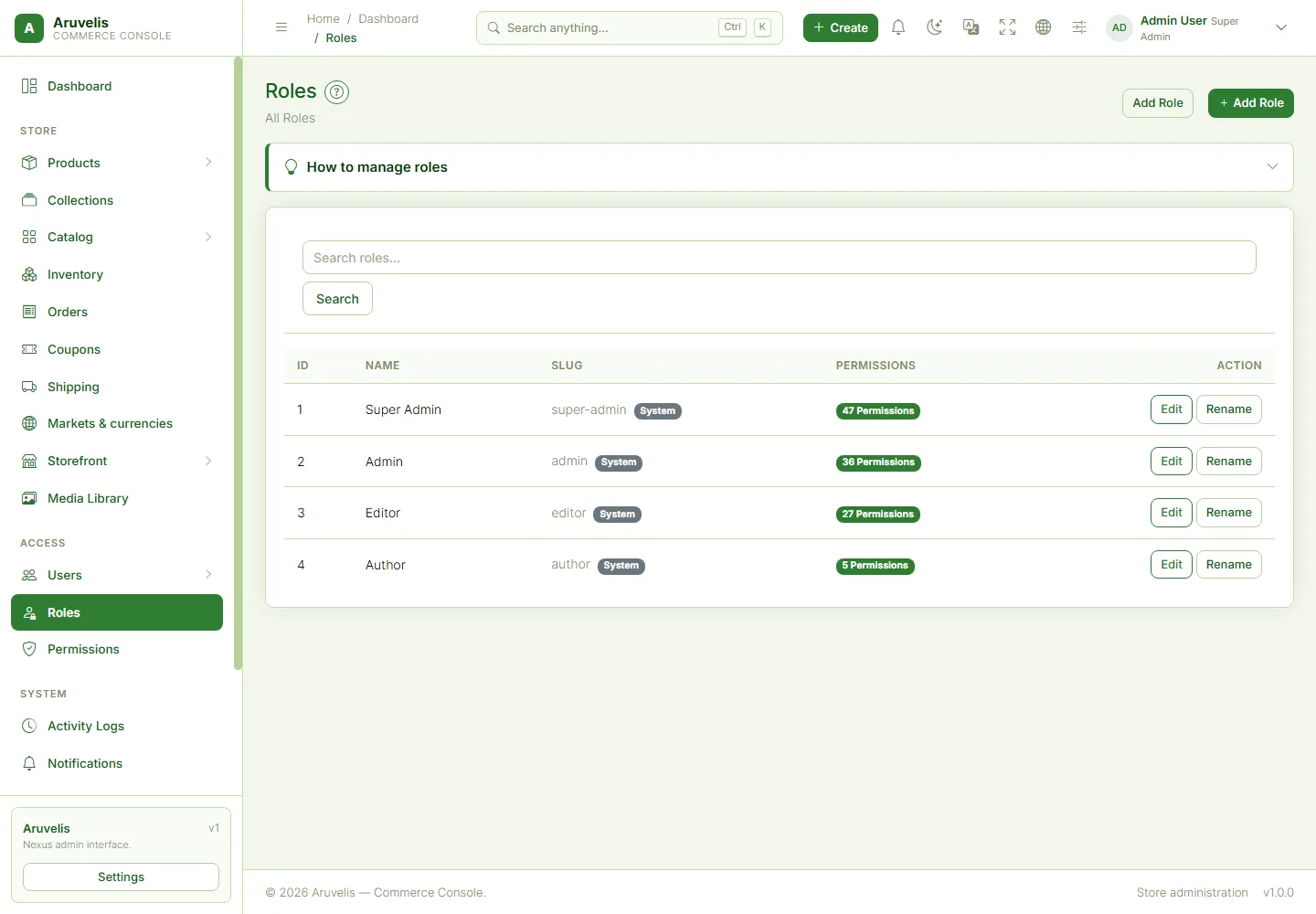
Use profile/session tools for password changes and active-session review. Activity Logs records supported staff activity. Notifications are an in-app signal, not proof that a customer email was delivered.
Branding & integration settings
Settings → General holds site identity and the available SEO, mail, SMS, payment credential and media configuration panels. Update your name, contact details, logo, favicon and sign-in image with licensed brand assets. Save each applicable form and reload the affected page.
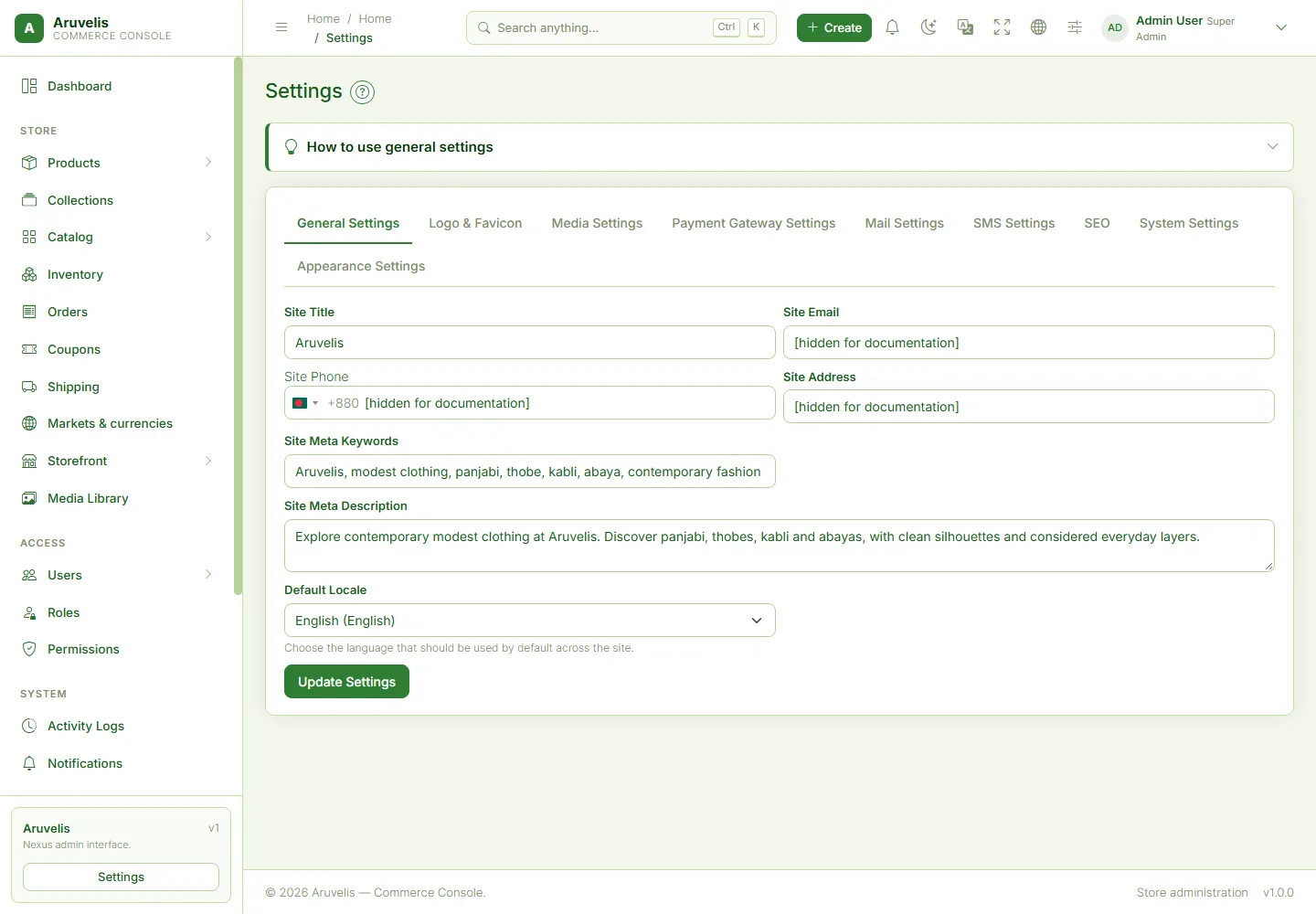
Mail and SMS
Choose a provider, enter credentials privately and use its test action. Ensure sender identity/domain verification is complete. Mail settings and a successful connection test do not mean every possible workflow sends an SMS/email. Order notifications also depend on working queues.
Payment credentials
Settings > General > Payment gateway settings configures the Stripe account used by Aruvelis checkout. Enter the publishable and secret keys, turn on Enable and save. The secret key is stored encrypted with APP_KEY; leave it blank on later saves to keep the existing value. The optional webhook secret is stored but is not consumed by this release. Test Stripe validates only field presence and key prefixes, so complete a Stripe test-mode purchase before going live. See Payment methods for the complete setup and limitations.
Do not share screenshots of real credentials or send them in support tickets. A lost or rotated key may require securely re-entering provider secrets.
Media & appearance
Use Media Library to upload, organize, inspect and select images. The picker is shared by products, collections, homepage sections and branding. Set alternative text that describes the product or scene, keep original image proportions appropriate to the destination, and optimize source files before uploading.
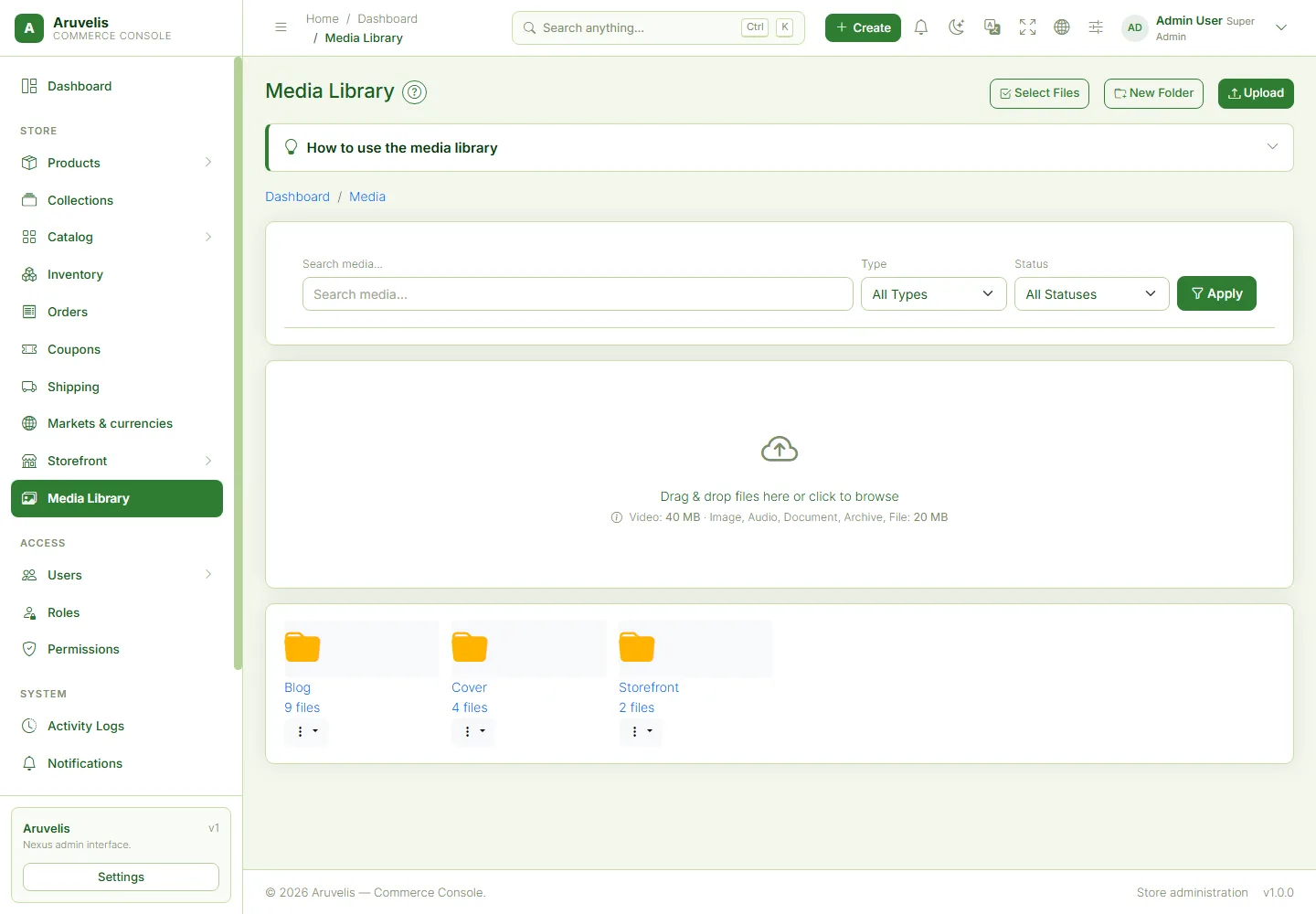
If uploads fail, check PHP/web-server size limits, application limits, disk permissions and available disk space. Image variants/crops require the relevant PHP image extensions. Never delete a referenced image without checking where it is used.
Settings → Appearance customizes Nexus admin colors, typography, surfaces and presets. User layout preferences can adjust the staff interface. Storefront styling is separate and lives in the storefront CSS/Blade source; changing admin appearance does not replace the storefront template.
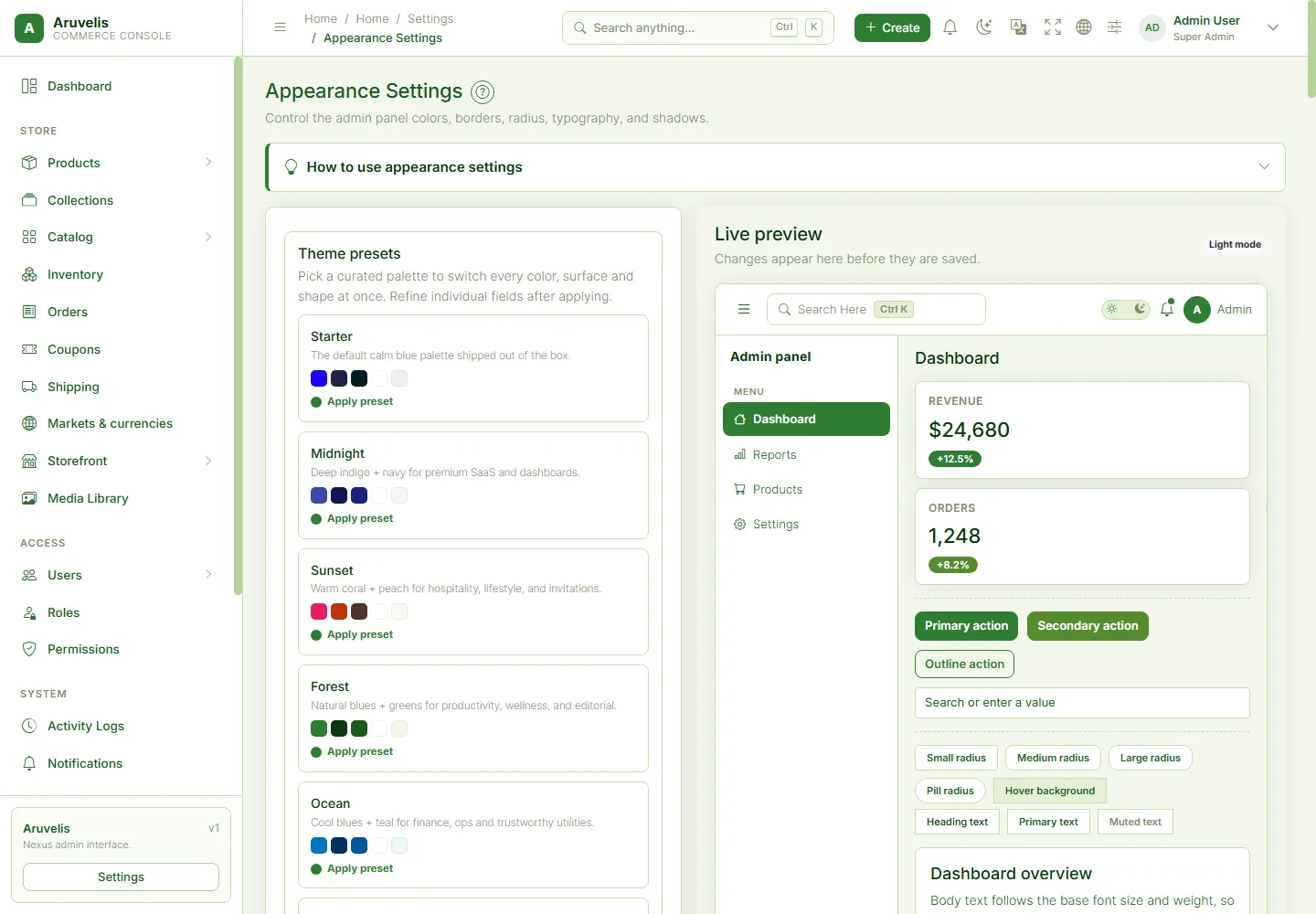
SEO & localization
Set the site title/description in Settings and specific metadata on products, collections and pages. Use meaningful slugs, descriptive image alternatives, working links and original product copy. Verify /robots.txt and /sitemap.xml on your final domain.
Cart, checkout and private account areas are not intended as public search landing pages. Review crawler behavior and privacy before publishing real customer data. Structured product data does not guarantee rich-search placement or search ranking.
Settings → Translations handles available interface translation overrides. A market's default locale and language selection do not automatically translate product descriptions, policies or legal content. Supply and verify each supported language, including right-to-left behavior where relevant.
Seeded SEO content is a starting point. Change descriptions, public domain links, business details and policies for the actual buyer's store rather than leaving another demonstration site's identity in production.
Queues & scheduled tasks
Production needs a scheduler and a supervised queue worker. The database-backed queue is supported by the baseline configuration, but jobs do not process merely because the queue table exists.
# Cron: adapt the PHP binary and application path.
* * * * * cd /var/www/aruvelis && /usr/bin/php artisan schedule:run >> /dev/null 2>&1

# Worker command: run under your process manager, not an abandoned SSH tab.
/usr/bin/php /var/www/aruvelis/artisan queue:work --sleep=3 --tries=3 --timeout=90

# Diagnostics
php artisan schedule:list
php artisan queue:failed| Scheduled work | Source schedule |
|---|---|
| Inventory reservation expiry | Every five minutes. |
| Cart expiry | Hourly. |
| Activity log cleanup | Daily at 02:00. |
| Orphaned media pruning | Sunday at 03:00; review reference safety and logs. |
| Backups, retention, stuck-run sweep | Conditional on backup configuration being enabled; see Backups. |
Queue work includes supported order notifications. Check failures before retrying; do not replay jobs blindly if they can contact customers. Restart workers after deployments. Protect logs because they may contain operational or personal information.
Backup & restore
System → Backups provides the starter's configured backup workflow and storage/delivery options. Set an appropriate destination, schedule and retention policy, then test both creation and a restore on a separate environment. A database export is not a complete application backup.
- Keep the database, uploaded media, application release/lockfiles and private
APP_KEY/environment recovery material recoverable. - Use an off-server copy and restrict access; backup archives can contain customer information and secrets.
- For recovery, restore into an isolated environment using the matching source release, database and uploads, with the correct encryption key.
- Check catalog, stock, orders, media links and encrypted settings. Keep workers/mail/payment callbacks paused while validating restored data.
- Only then perform a controlled production cutover, ensuring old workers cannot continue processing.
Backups are not automatically restored by the commerce status-reversal tool. Do not treat Telegram delivery or a successful archive download as a verified disaster-recovery test.
Updates & developer customization
Update an existing store
- Read the release notes and test the exact update against a staging copy.
- Back up the database, uploads and private configuration; preserve the existing application key.
- Deploy the new application files/lockfiles without replacing
.env, uploads or customer data. - Install production dependencies, migrate forwards and build/upload the release assets.
- Clear/rebuild caches, restart workers and verify the key storefront/admin workflows.
composer install --no-dev --prefer-dist --optimize-autoloader --no-interaction
php artisan migrate --force
npm ci --ignore-scripts
npm run build
php artisan config:clear
php artisan config:cache
php artisan view:cache
php artisan queue:restart
Do not run the full demo seed during updates. CommerceSeeder and other example seeders can reset stock/prices or configured defaults. Run a narrowly reviewed data migration/seeder only when a release explicitly requires it. Never use migrate:fresh or key:generate for a normal update.
Extend the existing shell
Use Nexus admin layouts/components and the existing searchable-select conventions. Keep business rules in app/Commerce/; do not duplicate stock/payment logic in views. Register permission-guarded routes and sidebar items, add migrations instead of editing live schemas, and rebuild Vite assets after source edits.
Development tools include the project's automated test suite and Pint. Run them on isolated test databases, never against live data. This documentation update verifies documentation/screenshots; it does not certify all commerce paths or complete the release-hardening plan.
Troubleshooting
Blank page or HTTP 500
Check storage/logs/laravel.log privately, PHP version/extensions, application key, database connectivity and writable cache/storage paths. Keep APP_DEBUG=false on a public site. Share a sanitized error/trace, never the entire environment file.
CSS/JavaScript missing or Vite manifest not found
Build the locked assets with npm ci --ignore-scripts and npm run build; deploy public/build/. Check document root, HTTPS asset URLs and permissions. Do not leave a stale development hot-file pointing buyers to your development machine.
Installer redirects or a proxy timeout appears
Use /install for first setup. An installed flag or private completion marker deliberately redirects away. After a 504, leave status polling running; do not submit another reset. If a partial installation failed, inspect the private log and selected database before retrying. Never clear installation state or reset an operating store to resolve login problems.
Administrator gets 403 or a sidebar item is missing
Check staff account type, active status and the assigned role's specific permission. A customer account must not receive staff permissions just to bypass a 403. Review permission seed changes before running a targeted role update.
Product missing, unavailable or showing the wrong price
Check active/publication state, category/collection membership, variant activity, stock reservations, selected market and applicable price. Enter product-form prices in decimal currency units. Inspect current market-specific records before assuming the base price is displayed.
Logo or uploaded images missing
Run php artisan storage:link if the public link is absent. Verify files exist on the intended disk and check permissions, HTTPS URLs and upload limits. Do not delete media records to repair a broken symlink.
Homepage section saved but not visible
Confirm active state, position, schedule and the section's actual content. Selected products/categories must be usable. Check the homepage after targeted cache invalidation; clearing all shared caches is an operational action, not the first content-editing step.
Shipping options absent or checkout unavailable for a market
Check active market/currency, country mapping, matching active zone, method currency/rate, subtotal threshold and variant prices. Changing a country may require Update shipping options. A method label alone does not configure geographic coverage.
Emails do not arrive
The example log mailer does not send email. Configure a verified provider, inspect queue worker/failed jobs and provider delivery logs, then send a controlled test. Check spam and domain authentication too.
Stock seems to drop twice or an adjustment note is missing
Inspect the exact variant's inventory history, order events and reservation statuses. Shipping normally deducts; delivery should not deduct committed units again. Adjustment notes/reasons belong to movement history, not an order status field. Do not manually overwrite balances while reservations are active.
Print preview cuts off or has too many pages
Select the intended paper size and scale, inspect margins and disable browser headers/footers if appropriate. A receipt designed for standard paper will not automatically match every thermal printer's roll width. Verify a sample before giving printed receipts to customers.
Stripe is selected but checkout reports a payment error
Enable Stripe in Payment gateway settings and save both the publishable and secret keys. Use keys from the same Stripe mode (both test or both live), confirm the account is active and supports the order currency, and read the exact message at checkout. The Test Stripe button validates format only. See Payment methods.
Stripe requires additional authentication at checkout
The card needs 3-D Secure/SCA. This release does not implement the authentication challenge, so the payment cannot complete. Use a card that does not require authentication for testing, or have a developer add an SCA confirmation flow.
Stripe charged the card but Aruvelis has no order
A network failure may occur after Stripe accepted the charge but before Aruvelis committed the order. Search the Stripe dashboard by amount, email and time, then reconcile manually. Do not ask the customer to pay again.
Production & security checklist
- Use HTTPS, a restricted
public/root, production environment and debug disabled. - Disable demo behavior and remove/secure seeded accounts and example content deliberately.
- Enable Stripe only with the intended test or live keys, keep the secret key private and test both COD and Stripe on staging before accepting real orders.
- Use strong administrator credentials and least-privilege staff/database access.
- Do not expose
.env, Git history, logs, backups, database dumps or upload secrets. - Verify real shipping coverage, taxes, policies and customer email delivery.
- Run scheduler/workers and monitor failed jobs, storage usage and backup health.
- Test guest/customer checkout, eligible order transitions/reversals and stock reconciliation in staging.
- Check current mobile and desktop browsers and receipt print preview on intended printers.
- Complete asset-license, third-party dependency and privacy reviews before distributing the buyer package.
This guide is operational documentation, not a security audit, tax opinion, marketplace acceptance guarantee or evidence that all release-hardening tasks have passed.
Credits, licenses & support
Aruvelis builds on Laravel/PHP, Blade, the existing Nexus/Bootstrap admin shell, Vite/Tailwind and the locked Composer/npm dependencies. Other source dependencies include the application's media stack and Spatie activity/backup tooling. Review the release lockfiles and each package's actual license; a framework license does not license every bundled template, font, photograph or preview asset.
- Laravel · Laravel framework license
- Bootstrap · Bootstrap Icons
- Tailwind CSS · Vite
- Spatie packages · Intervention Image
Preview assets: screenshots show the current demonstration catalog and inherited reference-template images. Their capture does not establish commercial redistribution rights. Before submitting or redistributing images, fonts or template assets, the author must confirm rights, include required attribution/license text and state clearly when an asset is preview-only. See the author checklist and dependency inventory.
Requesting help
After purchase, contact the author through the item page's support/contact channel. Include item/version reference, a sanitized error, reproduction steps, browser/device, PHP/database version and relevant non-secret screenshots. Never send passwords, private keys, full .env, card information or customer exports. Do not publish your purchase code in public comments.
Use the support channel and response terms declared on the published item. Custom integrations, bespoke design, hosting administration and new features are not automatically included. Marketplace licensing and support terms are governed by the applicable Codester marketplace terms, the license selected for this item and the published item's support terms, not by this guide.
Documentation revision
21 October 2026: documented secure web installation, explicit database reset consent, essential-only seeding, owner creation, permanent installation locking and background timeout recovery. COD/Stripe payment behavior and Codester marketplace terms remain unchanged.
20 October 2026: corrected the payment chapter to match the shipped gateway registry: removed the obsolete sandbox instructions, documented Stripe setup, the Stripe.js/PaymentIntents checkout flow and its limitations (cards only, no SCA challenge, no webhook endpoint and no automatic Stripe refunds). Added buyer installation, configuration and usage guides to the package Documentation folder.
19 October 2026: replaced the inherited Elevatekit manual with Aruvelis-specific installation, storefront and commerce-admin documentation; added real desktop/mobile screenshots, workflow limits, production warnings and dependency inventories.
Screenshot provenance is recorded in the capture manifest. Additional local screenshots are available in the assets/screenshots/ directory. Documentation revisions are not an application release/version certification.